Bypassing My ISP's ONT Using an SFP Stick
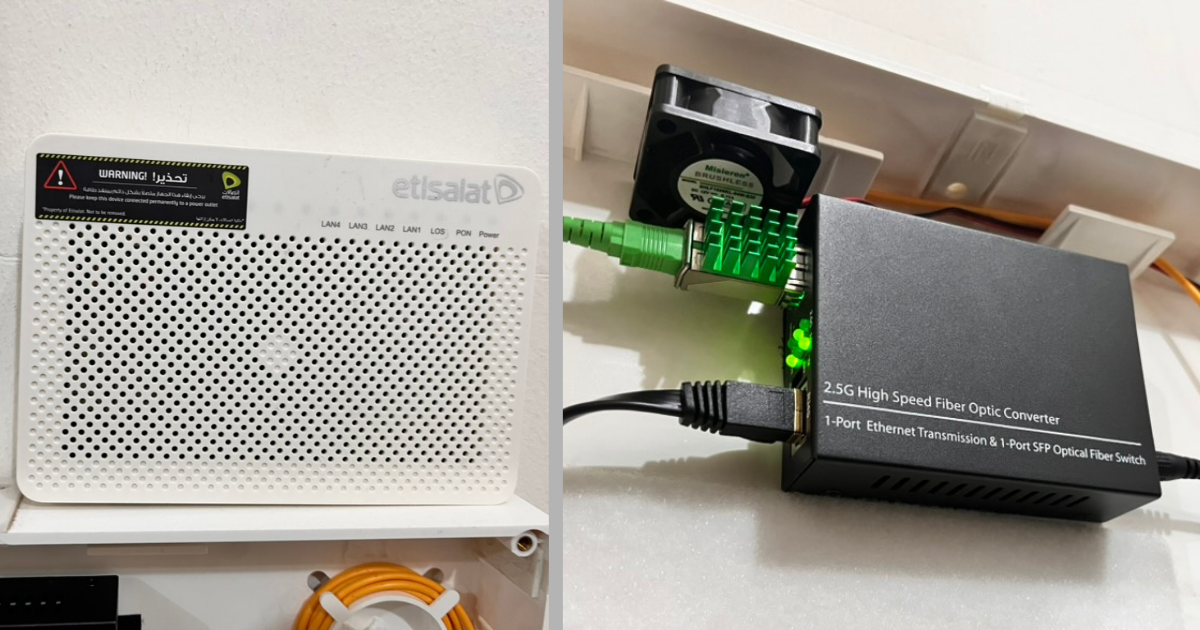
I don’t like my ISP that much. I don’t really know why I’m replacing the ONT, it just felt like a fun project.
I’ve watched some videos of people replacing their AT&T ONT with an ONT stick. I don’t know how this works yet, and I haven’t worked with fiber at all. All I know right now is that my ISP’s ONT is just a box that converts the light pulses inside the fiber into standard Ethernet. I even thought any SFP transceiver would work.
My ISP uses PPPoE for internet authentication, and I thought that was the only authentication layer you needed to get online.
Turns out, no.
TL;DR
My ISP gives me a leased Huawei ONT (an HG8040H5), the box that turns their fiber into Ethernet. I replaced it with my own SFP ONU stick, a Huawei MA5671A, by cloning the ONT’s GPON identity onto it: the serial, the MAC, the vendor, and the model. My line authenticates by serial number alone, so once the stick showed up as my ONT, the OLT accepted it. From there it was matching the fiber’s VLAN and flashing the latest firmware off a Chinese forum.
So I did some research to learn about fiber before getting into this.
Let’s take it step by step, from a small hypothetical ISP’s perspective.
Unfortunately some images were lost, so I replaced them with new ones. Note that they might not be fully accurate.
Don’t have time? If you already get how internet broadband works and just want to get into the project, start here.
Disclaimer: This might not be fully accurate and may be very, very simplified. If there is any misinformation, please make a pull request or an issue at https://github.com/mhd64real/mhd64real.git, or send me an email.
The first thing I’ll get is my core router. It will handle PPPoE, handing out IPs, and routing, and it’ll use BGP. Something like a Cisco ASR 1000. Then I’ll get a core aggregation switch with high speed uplinks and switching, and connect it to the router.
Now I’m ready to go, as long as my clients are within about 100 meters. (Assuming I’m using normal Cat 8 Ethernet.)
Most likely that’s not the case, and that’s exactly why you almost never see an ISP do this.
That’s where the other types come in.
Chapter 1 - Broadband Access Types
Using Existing Telephone Lines
Back then, there was no internet yet, but almost every home already had a telephone. So the infrastructure for phone systems already existed. When ISPs decided to offer internet, they had a problem: dig everything up and lay new infrastructure, or just reuse the existing phone lines. So that’s what they did.
Internet speeds were less than 56 Kbps, and websites were just simple HTML pages. That’s all the average family needed anyway.
So how do we get internet over telephone lines?
Dial-Up
They invented dial-up. Under the hood, it’s just analog sound waves. You have a modem, you plug it into the phone port, and now you can’t use your phone, only the modem. The modem dials a number, as if it were a phone.
Then it initializes, and sends the data. It just translates.
For example:
Beep = 1
Boop = 0
and so on.
ezwa, Public domain, via Wikimedia Commons
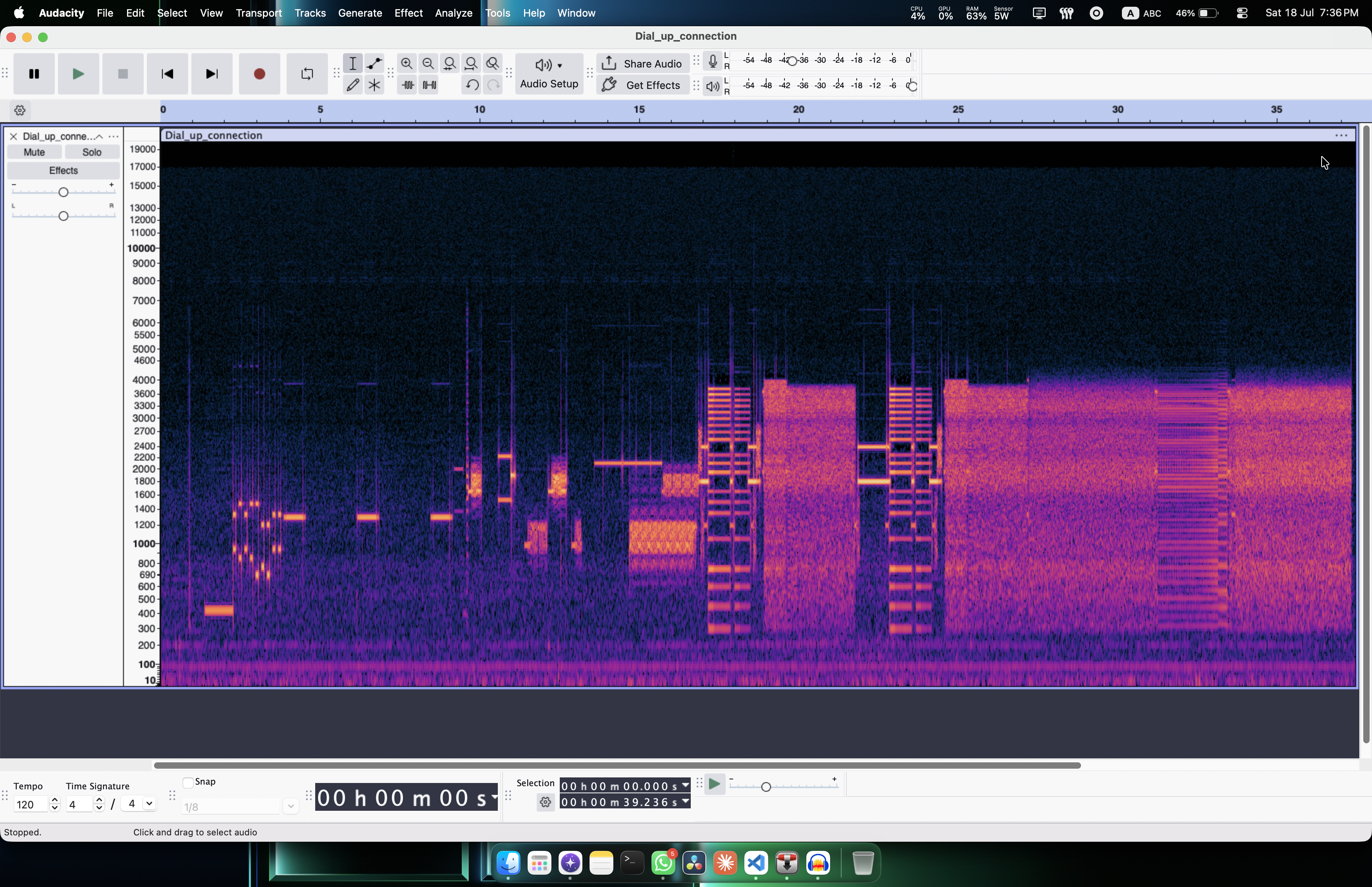
This was extremely slow, and you couldn’t use the phone while you were connected to the internet.
As demand grew and websites got more and more advanced, people needed better speeds. So they developed DSL.
DSL
DSL stands for Digital Subscriber Line. It still runs over the same copper telephone lines.
Your voice on a phone call only uses a tiny slice of frequencies, roughly 0 to 4 kHz. That’s all a human voice needs. DSL looks at all the frequencies above that, the ones the phone call never touches, and shoves the internet data up there.
So now the phone and the internet live on the same wire at the same time, just in different frequency bands. You put a small filter on the line (a splitter) to keep them from bleeding into each other, and that’s it. You can browse and call at the same time.
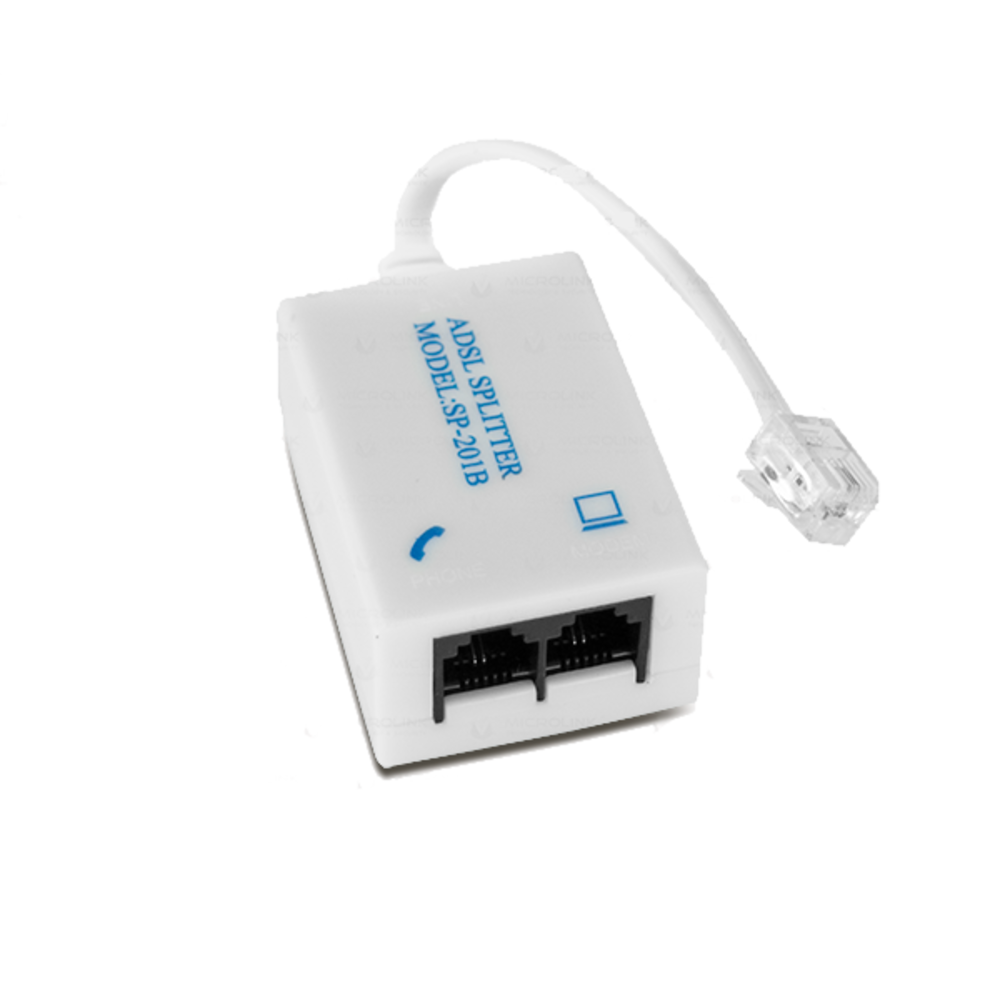
At the other end, in the telephone exchange, all these lines land in a box called a DSLAM (DSL Access Multiplexer). It takes all the DSL lines from the neighborhood, pulls the data back off those high frequencies, and hands it up to the ISP’s core.
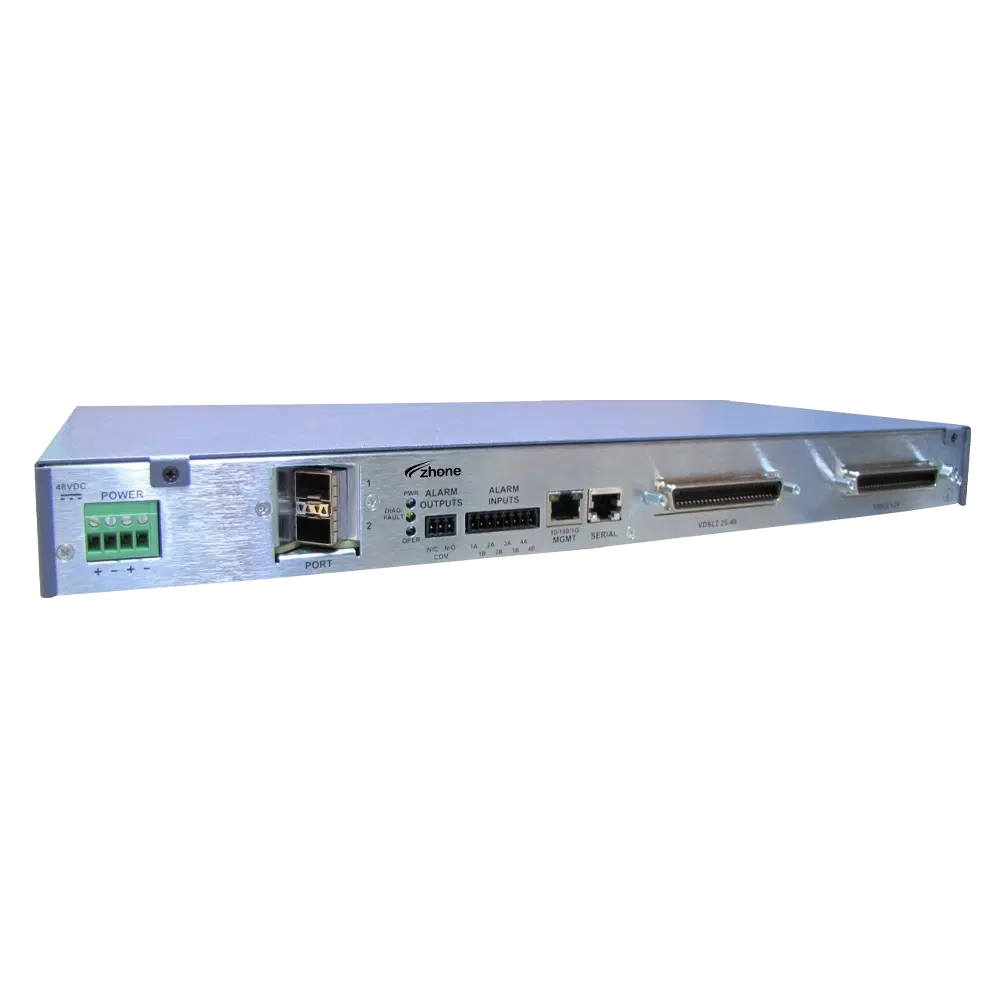
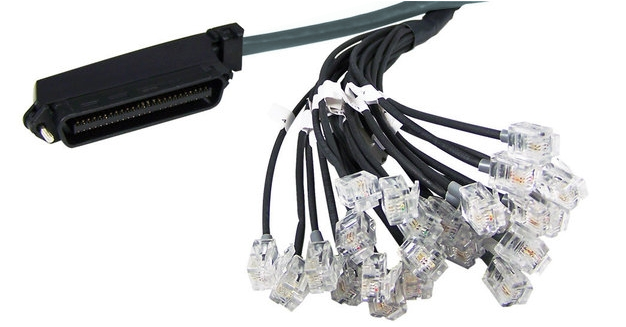
There is one catch though, and it’s the distance. Copper is bad at carrying high frequencies over long runs, the signal fades the further it travels. So the closer you are to the exchange, the faster you go. My ISP in Egypt advertises 200 Mbps on their VDSL2-capable network. But in reality the line maxes out at 30 Mbps.
DSL isn’t a single thing though, it’s a family. The main ones are:
ADSL (Asymmetric DSL). This is the home one. “Asymmetric” means your download is much faster than your upload. Which makes sense, an average home downloads way more than it uploads. You pull down web pages and videos, you barely send anything back. ADSL2+ tops out around 24 Mbps down.
SDSL (Symmetric DSL). Same speed up and down. This one is for businesses, the kind that actually host things and need to send as much as they receive. It usually takes the whole line for data, so no sharing it with a phone.
VDSL (Very-high-bitrate DSL). The fast one. It uses even more frequency range to hit much higher speeds (VDSL2 can do 100 Mbps and beyond), but it only reaches those speeds over a short run of copper. So how do you keep everyone close? You bring the fiber most of the way. The ISP runs fiber to a street cabinet near your house (the DSLAM now sits on the corner instead of the exchange), and only the last short stretch to your home stays copper VDSL. That’s Fiber-to-the-Cabinet.
And that idea right there, pushing the fiber closer and closer, is going to keep coming back. Hold that thought.
Because telephone lines weren’t the only wires already running into people’s homes.
Using Existing TV Cables
The other thing almost every home already had was cable TV. And cable TV runs on coax, which is a much better carrier than a telephone twisted pair. It was built to push a whole spectrum of TV channels down one thick cable. So the cable companies looked at all that capacity and asked the obvious question: why not put internet on it too?
DOCSIS
DOCSIS stands for Data Over Cable Service Interface Specification. It’s the standard for running internet over that TV coax.
It pulls the same trick DSL does, just on a different wire. The TV channels sit at their own frequencies on the coax. DOCSIS grabs the frequencies that aren’t being used for TV and puts the internet data there.
The modem here is a cable modem. And back at the cable company, the box all these modems talk to is called a CMTS (Cable Modem Termination System). It’s the DOCSIS version of the DSLAM. It collects every modem in the area and hands the traffic up to the core.
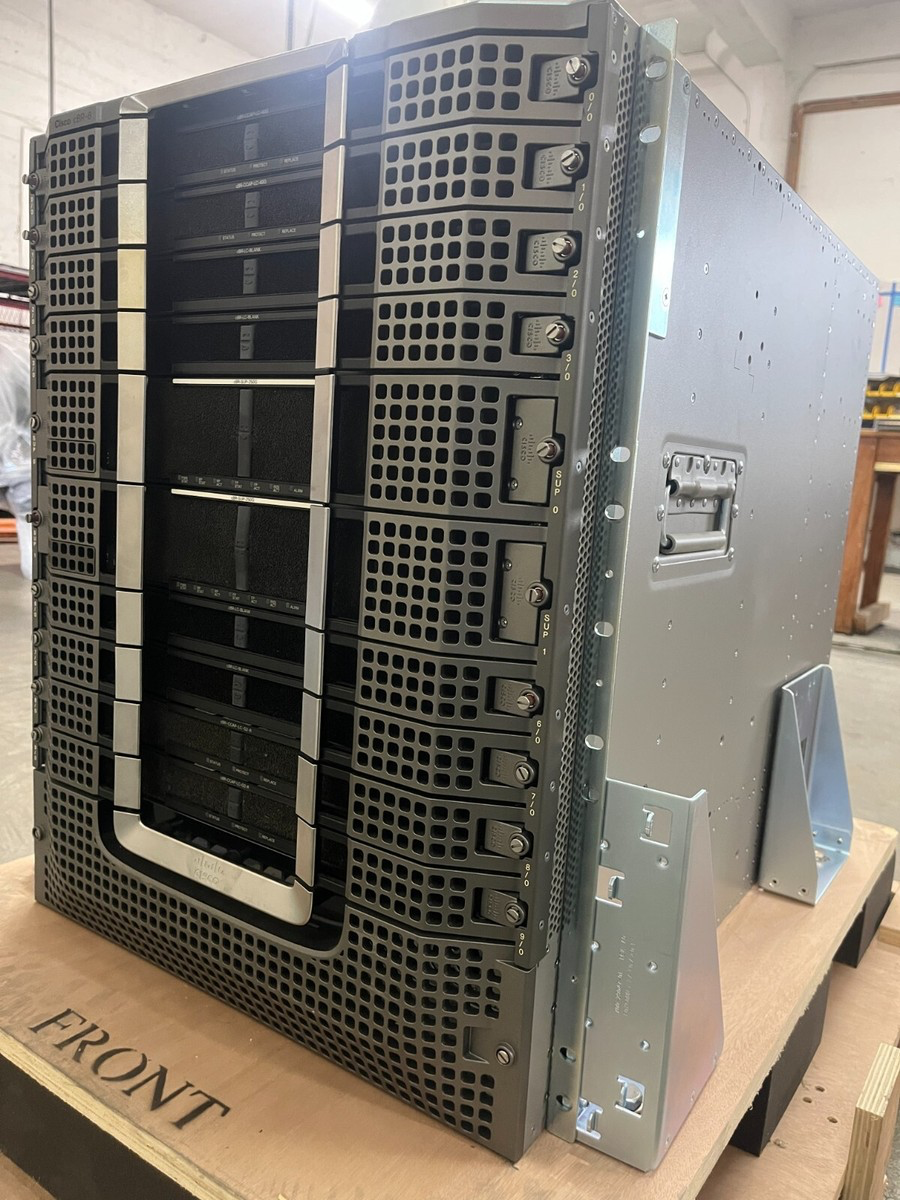
But here is the big difference from DSL, and it matters. On DSL, every home gets its own dedicated copper pair back to the exchange. Your line is yours. On cable, a whole bunch of homes share the same coax segment. You’re all on one wire.
So the bandwidth is shared. When your whole street gets home at 8pm and starts streaming, you are all fighting over the same pipe, and everyone slows down. This is the classic cable thing where your internet is great all day and dies at night. On DSL your speed depended on distance. On cable it depends on how greedy your neighbors are.
Like DSL, it’s usually asymmetric, a fat download and a much thinner upload, because the upstream only gets a small slice of the spectrum.
And the coax doesn’t run all the way back to the cable company either. It’s the same story again. Fiber runs from the head-end to a node in your neighborhood, and only the last stretch to your house stays coax. They call it HFC, Hybrid Fiber-Coax. The fiber creeping closer, again.
DOCSIS got fast over the years. DOCSIS 3.0 bonded multiple channels together for hundreds of Mbps, 3.1 pushed past a gigabit, and 4.0 finally gave it a proper symmetric multi-gig upload. It’s cheap, since it reuses the TV cable, and it’s fast. The shared-medium congestion is the price you pay.
Fiber
We kept pushing fiber closer and closer to the homes, but it never actually reached the home itself. But now it does. Now each home gets its own fiber cable.
And fiber broadband works through a few different technologies.
First, there are two ways to run fiber to homes.
One is point to point: a dedicated fiber from the ISP straight to each home, with an active, powered switch on the other end for every single customer. It’s the fastest and cleanest, but it’s expensive. A port and a fiber for every house. This is called an Active Optical Network (AON), and you mostly see it for businesses paying for a dedicated line.
The other one is what almost every ISP actually uses for homes: PON, a Passive Optical Network. And the “passive” part is the whole trick.
Instead of a fiber per home, one fiber leaves the ISP and gets split, optically, to a bunch of homes (usually 32 or 64). The thing that splits it is a dumb piece of glass called a splitter. No power, no electronics, nothing to maintain out in the field. That’s why it’s cheap. One expensive port at the ISP feeds a whole neighborhood, and everything between the ISP and your house is just glass.
The box at the ISP end is the OLT (Optical Line Terminal). The box at your end is the ONT (Optical Network Terminal). That ONT is the one I’m trying to replace.
Now, if one fiber is split to 64 homes, how do they not talk over each other?
Downstream is easy. The data comes down from the ISP into the splitter, and the splitter is dumb, so it just copies it to everyone. The OLT broadcasts everything to every home, and each ONT only reads the parts meant for it. It’s encrypted, so your neighbor can’t read yours. Upstream is the tricky one. The OLT gives each ONT its own tiny time slot to transmit, so nobody talks at the same time. Upstream isn’t encrypted, since your data only travels up to the OLT and never reaches your neighbors anyway. Same shared medium idea as cable, just done with light and timing.
And it all rides one strand of glass, in both directions at once, because down and up use different colors of light (different wavelengths). One fiber, two directions, no collision.
Then come the flavors:
GPON. The common one, and the one my ISP uses. Around 2.5 Gbps down and 1.25 Gbps up, shared across the split. It’s the ITU telco standard, and most fiber ISPs run it.
EPON / GEPON. The Ethernet based cousin (IEEE instead of ITU). Same passive split idea, it just speaks Ethernet natively. Big in parts of Asia and some US networks.
XG-PON and XGS-PON. The 10 gig generation. XG-PON is 10 down / 2.5 up, and XGS-PON is the good one, 10 gig symmetric, same up and down. This is what ISPs upgrade to, often on the same fiber as GPON using yet another wavelength.
NG-PON2. 40 gig, using multiple wavelengths at once. Rare and expensive, not really a home thing yet.
So after all of that, telephone lines, then cable, and finally glass all the way to the door, my internet comes in as GPON. Which means the little box on my wall, the one I want to throw out, is a GPON ONT.
Okay, now back to our mini ISP. Since I’m in 2026, I’ll go with GPON fiber. And it turns out the ONT is not just a fiber transceiver. Here is why.
A regular SFP transceiver is dumb. You plug it in and it just converts light into an electrical signal and back. Photons on one side, bits on the other. That’s it. If GPON were really just “light in, Ethernet out”, then any old transceiver would work, and that’s exactly what I assumed at first.
But GPON isn’t that. Remember, one fiber is split to 64 homes, and they all share it. That sharing has to be managed, and managing it is a lot more than flipping light into bits.
So the ONT actually has to do real work:
- It has to register. When it powers on, it doesn’t just start blasting light down the fiber. It announces itself to the OLT, gets authenticated, and gets permission to join. This happens in stages, using a protocol called PLOAM.
- It has to obey timing. Since everyone shares the upstream, the ONT can only transmit in the exact tiny time slot the OLT hands it. It has to wait for its turn and speak only then. Get this wrong and you’d stomp all over your neighbors’ traffic.
- It has to be managed. The OLT configures the ONT remotely over a protocol called OMCI. It configures which VLANs to use, and more. The ONT has to understand OMCI and apply whatever the OLT tells it.
- It has to speak GPON. The data on the glass isn’t raw Ethernet, it’s wrapped in GPON’s own encapsulation, encrypted per home, on specific wavelengths.
So the ONT is basically a tiny modem that speaks the whole GPON protocol. Not a piece of glass, not a transceiver. It has a CPU, firmware, an identity the OLT trusts, and a management channel.
And that part, the identity the OLT trusts, is the whole key to this project. My ISP doesn’t really care what box is sitting on my wall, as long as it shows up speaking GPON with the serial number it expects. Which means if I can get my own device to speak GPON and present the right identity, it should just work.
And that is exactly what an SFP ONU stick is. Not a transceiver, an actual tiny ONT crammed into an SFP, running its own little OS. That’s the thing I’m going to clone my ISP’s identity onto.
So how does an ONT authenticate with the OLT exactly?
Chapter 2 - ONT Authentication
For an OLT to authenticate an ONT, it checks some fields. But this isn’t unified, it changes based on the ISP’s configuration or the OLT device. The standard part is that they all use PLOAM.
PLOAM stands for Physical Layer Operations, Administration, and Maintenance. It’s a set of Layer 1 messages universally understood by ONTs to manage hardware activation, security, and optical synchronization.
On the other hand you have OMCI, which stands for ONU Management & Control Interface. This runs on Layer 2, after PLOAM.
This was confusing for me to understand at first. So here is a simple explanation of what each one does, and the difference.
PLOAM
- Layer placement: Layer 1.
- Core capabilities:
- Meant for rapid, low-overhead hardware coordination.
- Measures the exact speed-of-light optical distance between the OLT and ONT to prevent physical upstream collisions.
- Handles the generation of the AES downstream encryption keys.
- Triggers immediate physical alerts like Dying_Gasp when the ONT loses power.
- Strictly standardized by the ITU-T under the G.984.3 standard for GPON, and can’t be modified by ISPs.
OMCI
- Layer placement: Layer 2.
- Core capabilities:
- Can’t run until PLOAM finishes and opens up a management channel.
- Features a full MIB (Management Information Base) data structure capable of configuring high-level software settings.
- Manages complex subscriber parameters including VoIP (SIP profiles), Wi-Fi SSIDs, VLAN tags, local Ethernet port speeds, and firmware updates.
- Can be modified and customized. While it’s based on a standard (ITU-T G.988), it’s highly flexible and is frequently altered by OLT vendors and ISPs.
There are a few different ways an OLT can authenticate an ONT, and most of them ride on PLOAM. The main ones are:
Serial Number (SN). Carried by PLOAM. The ONT sends its serial number up in a physical burst, and the OLT picks it up automatically during its discovery phase and hands back a temporary ONT-ID. This is the low-effort one, it all happens down at the hardware level with no software profile involved. This is the most common setup for home fiber, because it’s basically plug-and-play. The ISP just whitelists your ONT’s serial and you’re online, no config for the customer. The downside is it’s the weakest, the serial is easy to read off the box and there’s nothing secret about it, so if someone knows your serial they can pretend to be you. Most ISPs are fine with that because they control which box they ship you.
Password (SLID / RegID). Carried by PLOAM. The OLT asks for a password (a Password_Request), and the ONT answers with a short 10 to 20 byte hex or ASCII string. If it matches, the link is allowed to move from the ranging state (O4) to the operational state (O5). Still no software profile, just a physical-layer OK to come online. You see this where the ISP wants the account to live on a password instead of a specific piece of hardware, so you can swap your ONT and stay online as long as you punch in the same registration ID. AT&T style fiber is the classic example. On its own it’s not really used much, since a password with no hardware binding isn’t a big security win.
SN + Password. Carried by PLOAM. Both of the above, one after the other. This is the two-factor version at the physical layer. You need the right serial and the right password, which makes it much harder to walk in with a cloned SN or a rogue device and steal someone’s upstream time slot. This is what an ISP reaches for when they actually care about security, business lines, or networks where they’ve been burned by people cloning serials. It’s more of a hassle to provision, so you won’t usually see it on a cheap residential plan.
LOID + Check Code. Carried by OMCI. This one lives higher up, in the software stack, sent as actual data packets over a dedicated OMCI channel (the OMCC). Because it’s up at the management layer, it ties straight into the ISP’s billing, their automated provisioning (TR-069), and their account whitelists. This is big in China (China Telecom and the others) and on networks that want everything driven by the account instead of the hardware. The tradeoff is it can’t authenticate you all by itself, PLOAM still has to bring the physical link up first, so it rides on top rather than replacing the others.
So the first three are all PLOAM, and PLOAM is hardware identity, a serial number and maybe a password. That’s the whole reason this project is even possible. If the OLT is just checking for the right serial and password coming up the fiber, then I don’t need my ISP’s actual box. I only need a device that can speak GPON and present that same identity. Impersonate it.
So, what does my ISP use?
Exploring my ISP’s ONT
At the end of the day, even the ISP’s ONT is just hardware that has to be configured. It doesn’t have a baked-in identity by any means. So I was wondering: how does the ISP configure the ONT to work, and what’s the authentication method exactly?
I checked the sticker on the back of this ISP’s ONT.
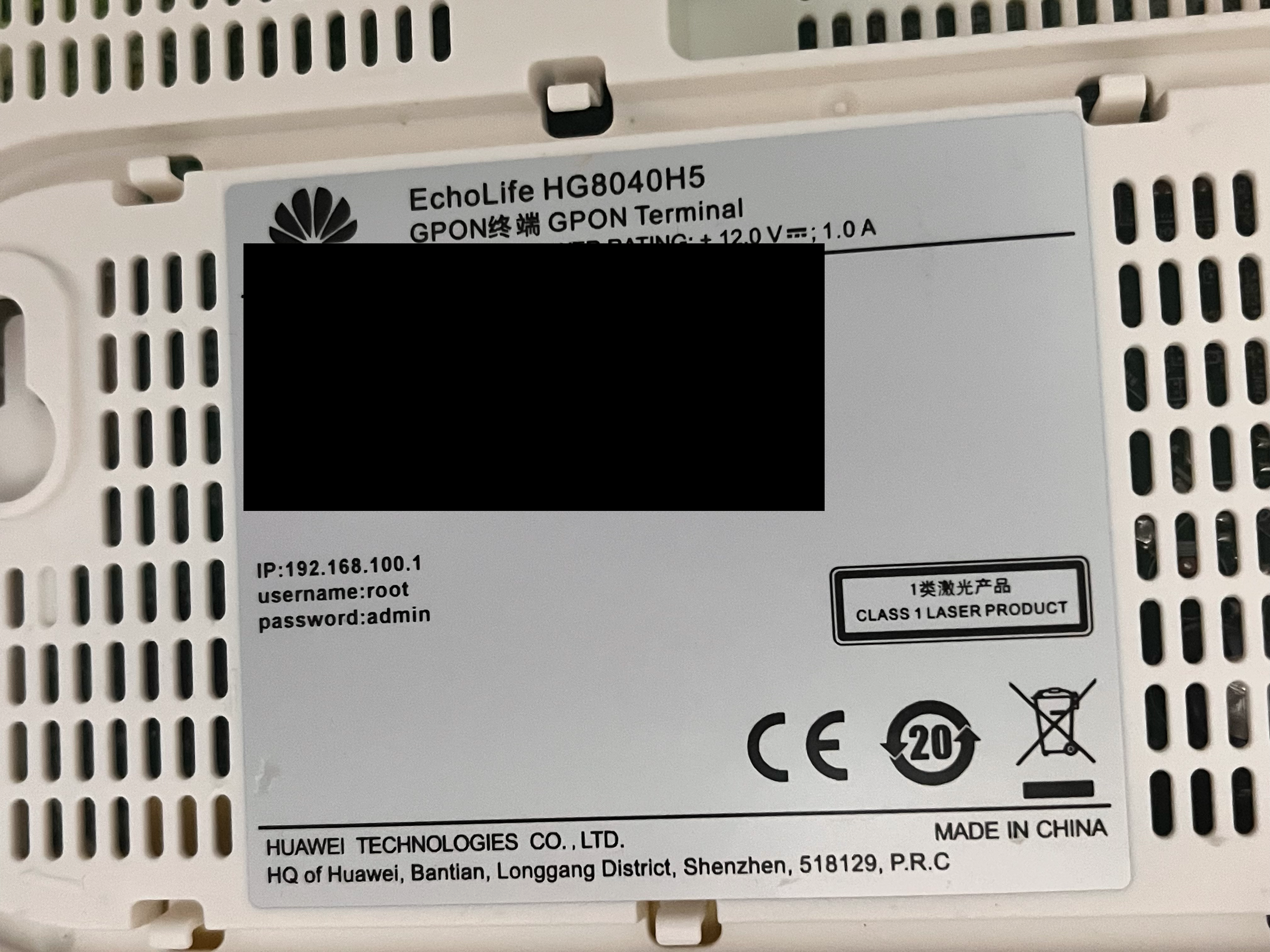
Turns out it’s a Huawei EchoLife HG8040H5, a GPON terminal. The sticker has the serial number and MAC address, and it also has an IP, a username, and a password.
So how do we use these credentials: Telnet, SSH, or the web?
I searched, and it has Telnet and a web UI. The web UI is the main way, since Telnet isn’t enabled by default.
But to reach the web UI you have to get an IP in its subnet, 192.168.100.0/24.
I did that and went to 192.168.100.1.
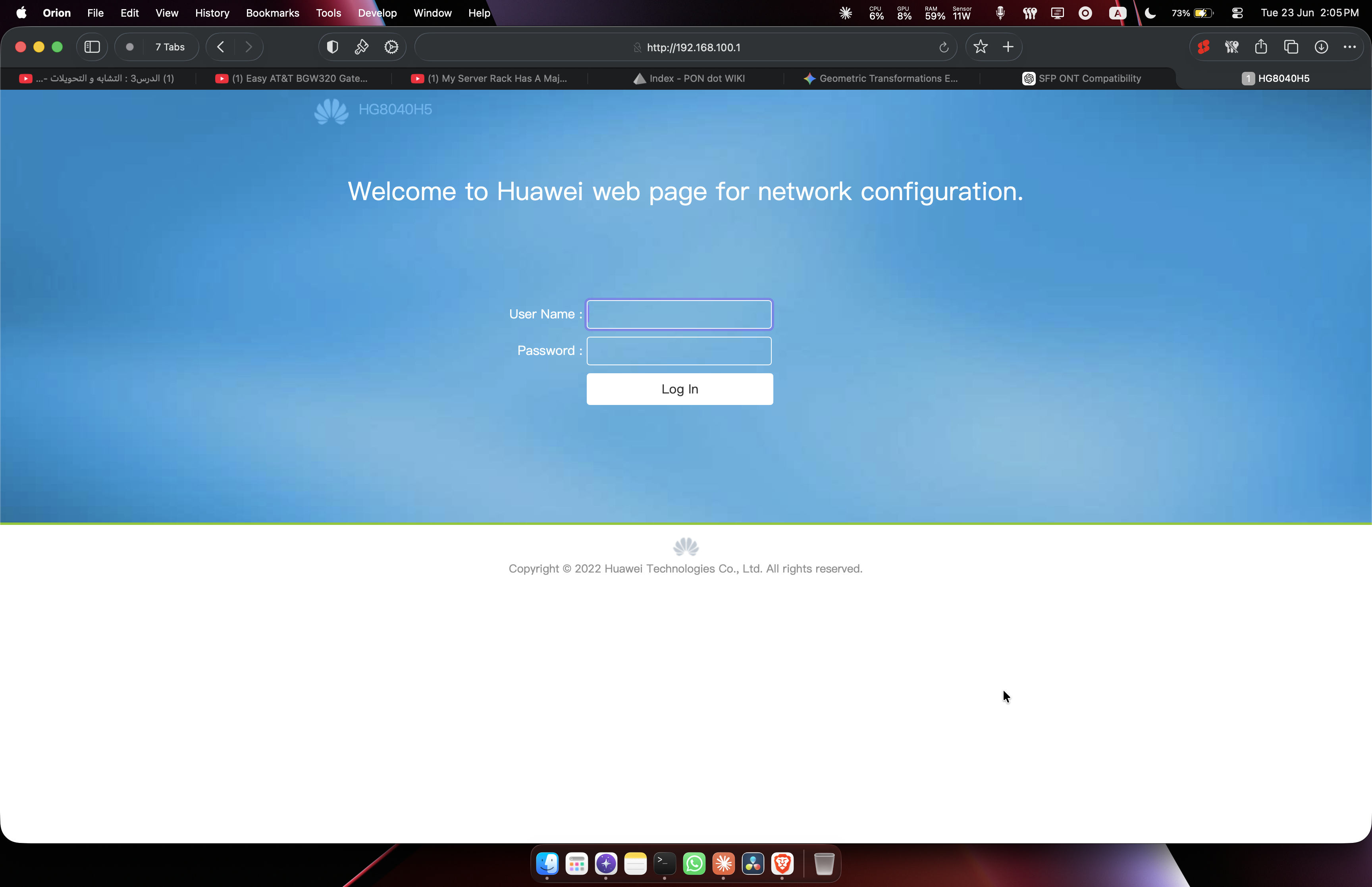
I entered the credentials from the sticker, and it worked.
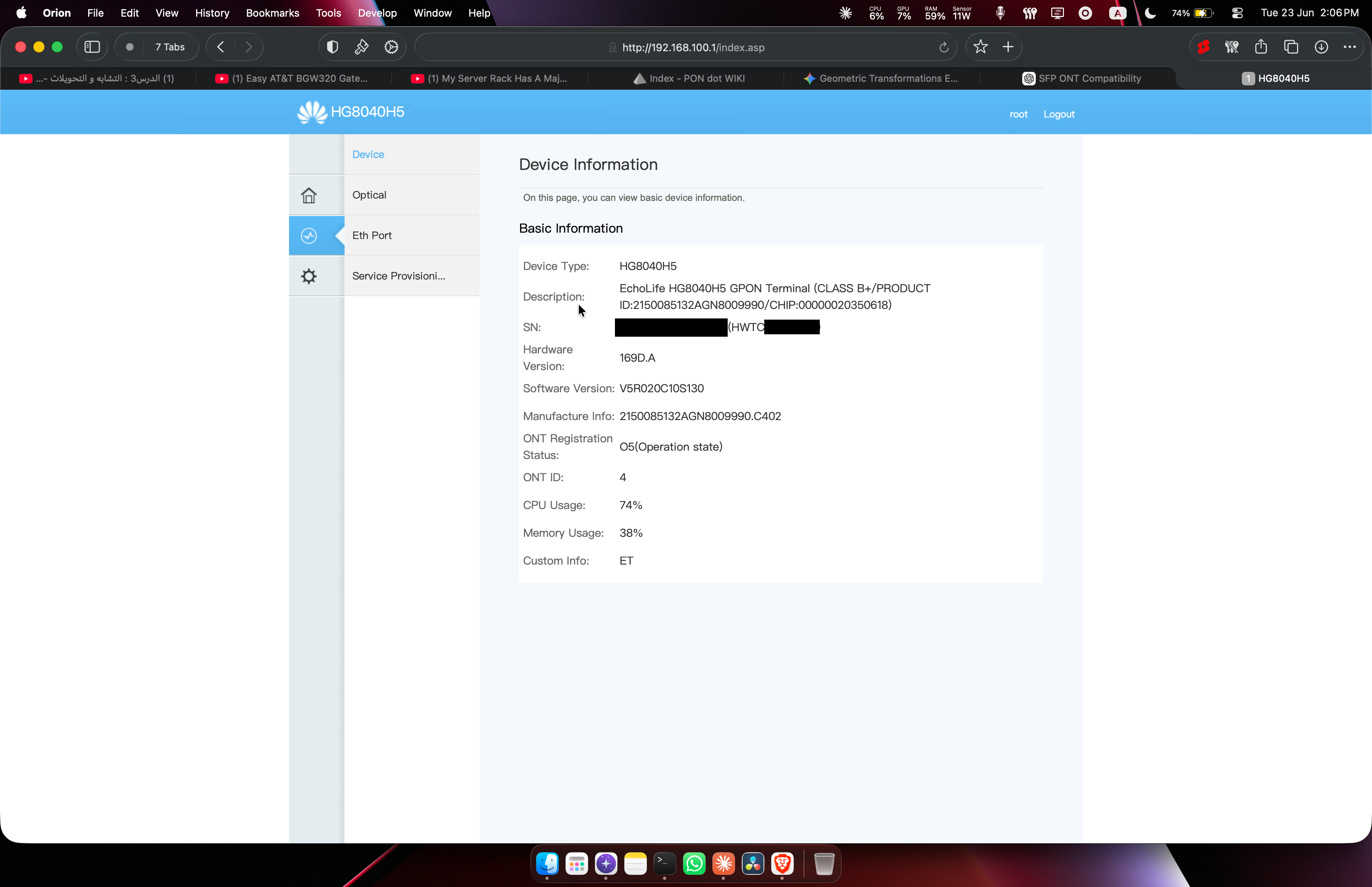
So let me check what authentication method my ISP uses.
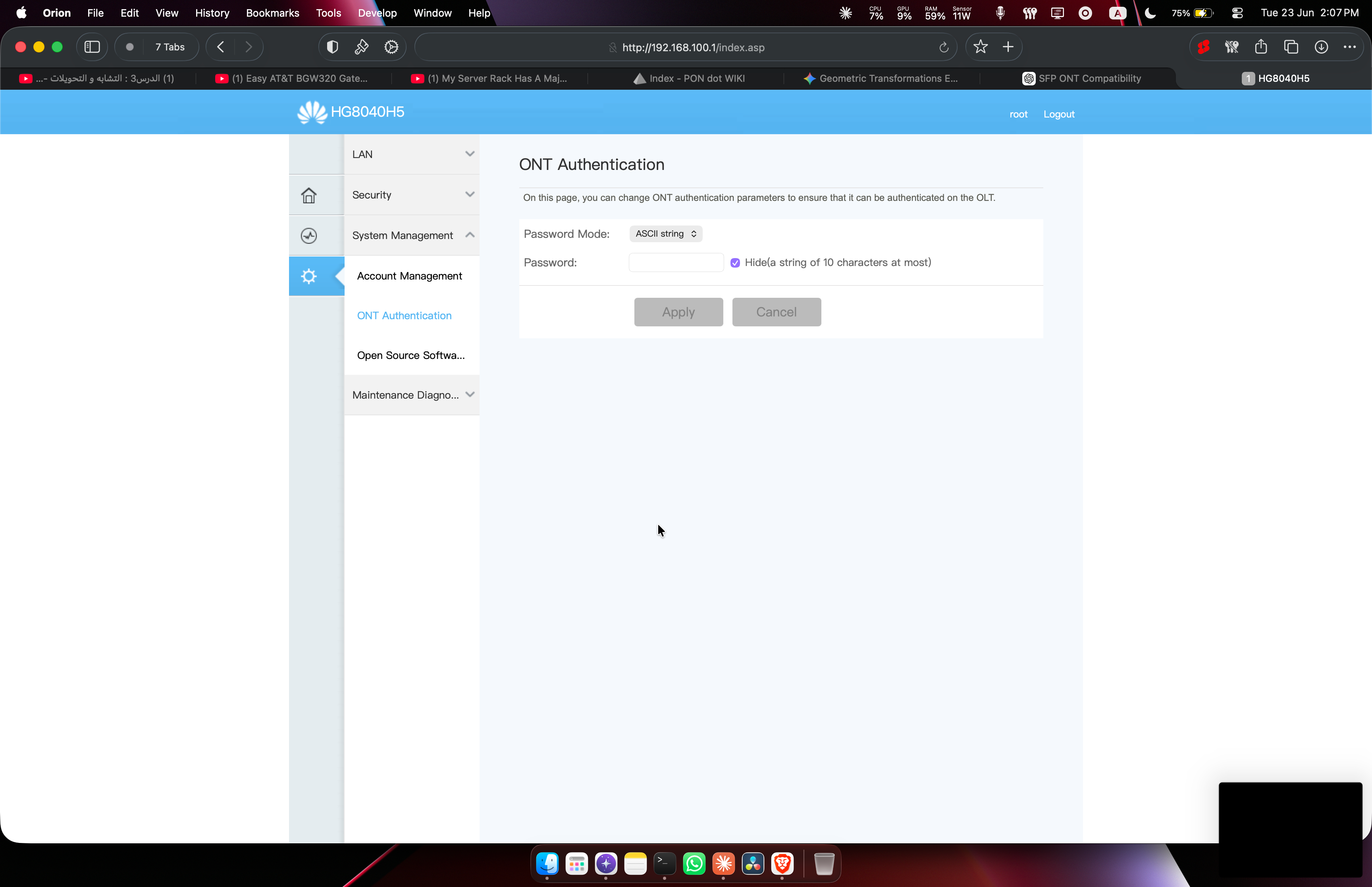
I don’t see any password here, but that might just be the UI not showing it. I’m still not sure, and I think there’s a better way to be certain.
Let’s try dumping the config, since I found a page that supposedly does exactly that. According to this repo by Anime4000:
Hacking Huawei HG8240 Series ONT/ONU
I checked that page, but I couldn’t download the config.
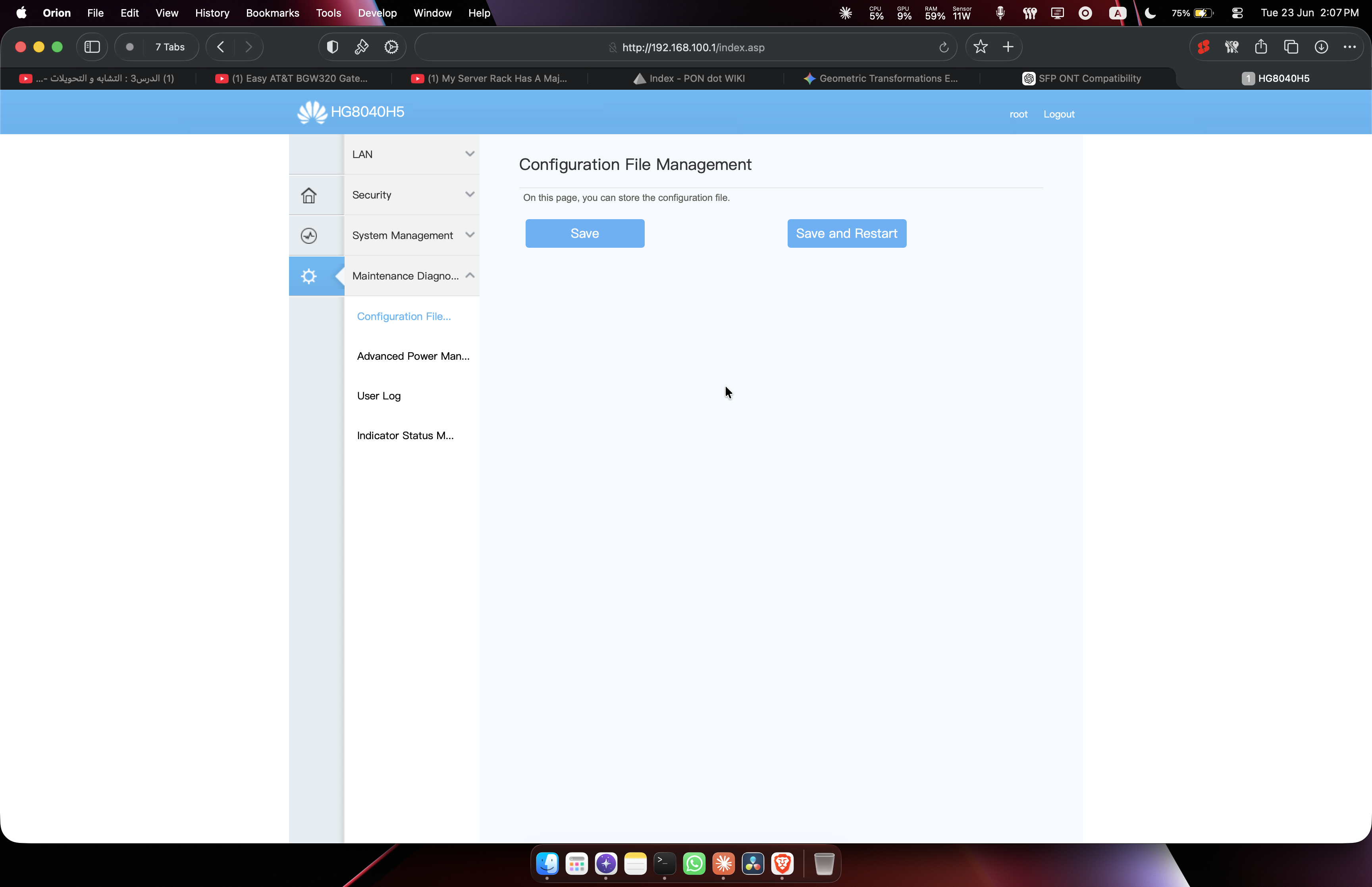
Turns out the credentials written on the back of the ONT (username root, password admin) are for a user with limited privileges.
So I’m thinking of two solutions:
- Trying default passwords
- Accessing the serial console over UART
I looked up the default password for this ONT, and it’s simply:
- Username:
telecomadmin - Password:
admintelecom
And surprise surprise, it worked. Accessing the same page now shows all the options.
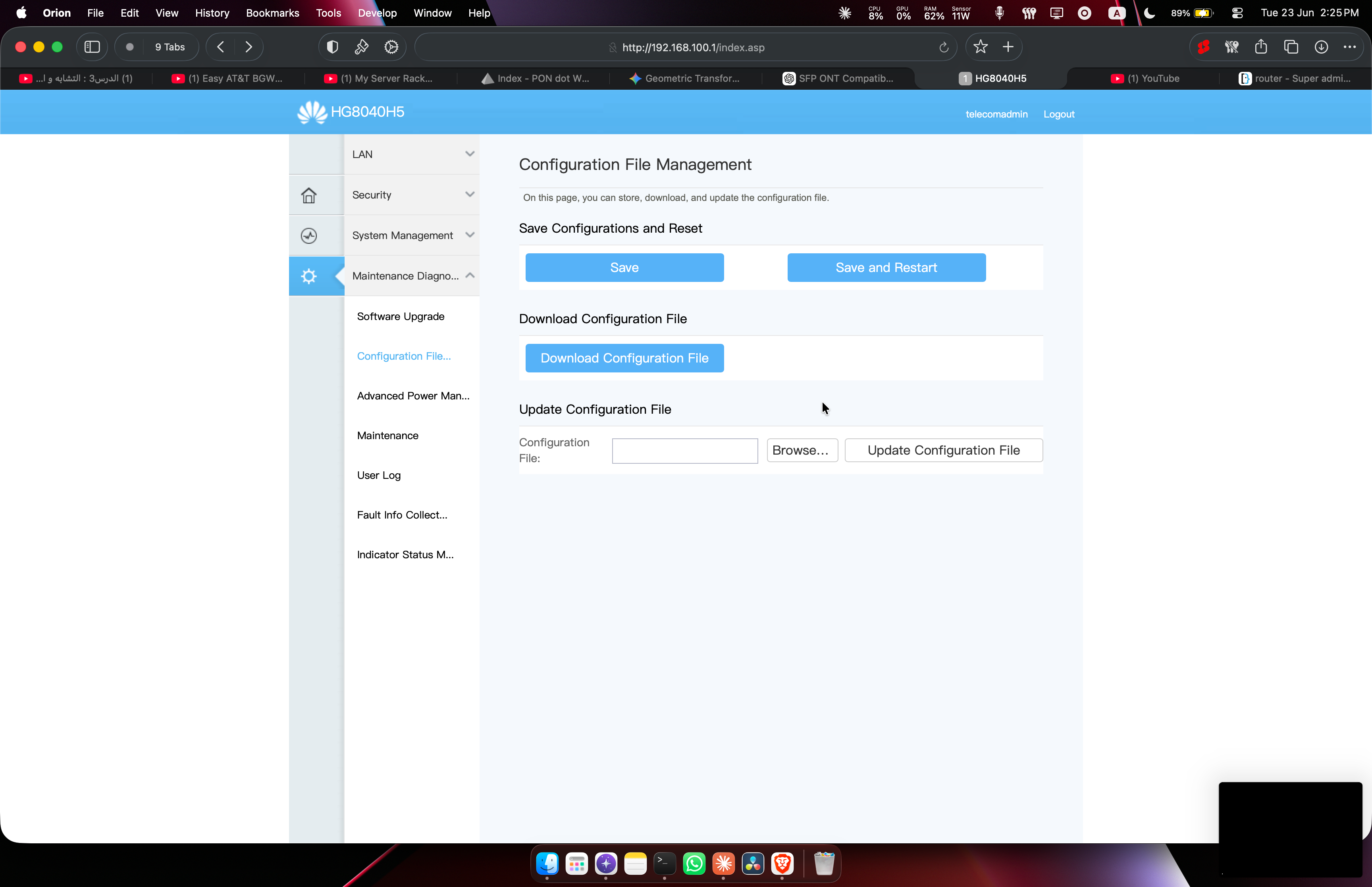
Now I can download the config. I did. It’s one big XML file, around 130 KB of it. Every single setting the ONT has is in here: WiFi, LAN, DHCP, TR-069, all of it. Most of it I don’t care about. What I came for is the GPON part, so I searched for it.
And here it is:
<XponMode mode="0"/>
<X_HW_XgponDeviceInfo RegistrationID="" MutualAuthSwitch="0" PreSharedKey=""/>
Two lines, but they tell me everything.
The first one, XponMode mode="0", confirms it’s GPON.
The second line is the one I care about. Remember the authentication methods from earlier? This is where my ISP actually picks one. And look at it, everything is empty:
RegistrationIDis blank. That’s the registration ID / password field. Not used.PreSharedKeyis blank. That’s the key for mutual authentication. Not used.MutualAuthSwitchis0. So mutual auth is off too.
Everything is turned off except one thing: the serial number.
So my line is SN-only. The OLT just watches for my serial to come up the fiber, checks it against its list, and accepts the ONT.
This is the best case if true. It means I don’t have to find a PLOAM password, or try getting info out of the device over UART. And I already have my serial. I just need a device that shows up with that same serial, and the OLT will treat it as my ONT.
The ONT Stick Search
Right at the start I thought any GPON SFP transceiver would do. Just buy one, done. We already know why that’s wrong, an ONT isn’t a transceiver. A transceiver only flips light into bits. It doesn’t register with the OLT, it doesn’t carry an identity, it doesn’t speak GPON. So a plain transceiver is useless here.
What I actually need is an ONT shrunk down into the shape of an SFP. And that exists. It’s called an SFP ONU stick. A whole ONT, running its own little OS, in something the size of a transceiver, that slots straight into a router or a switch.
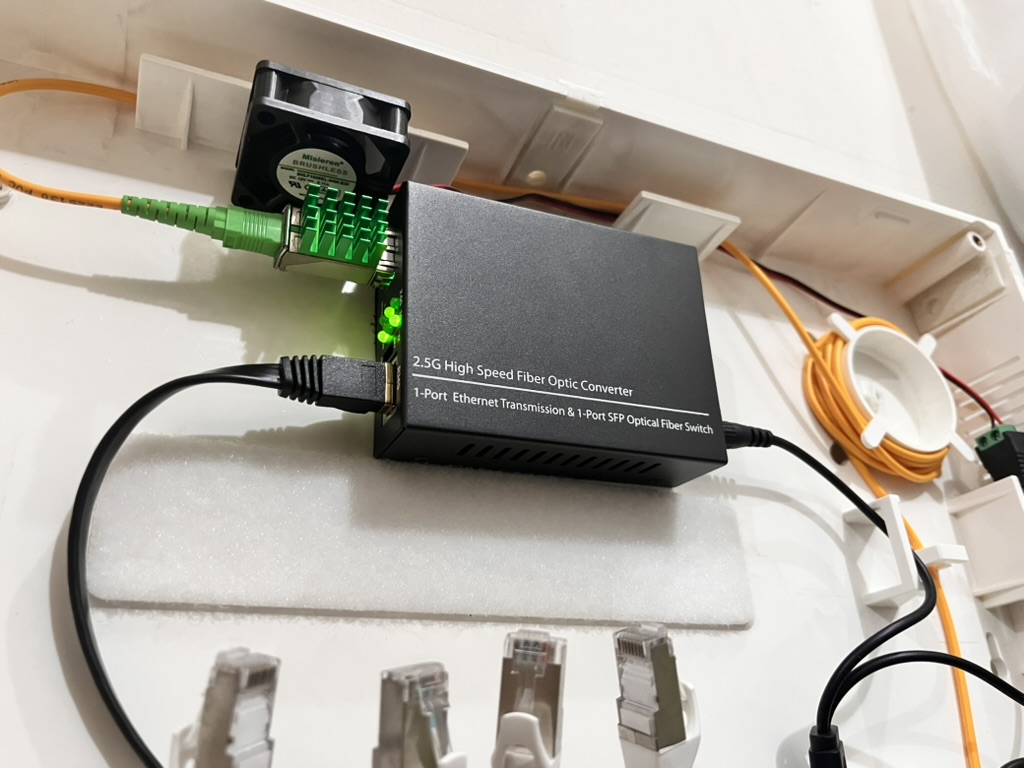
I looked at a handful of them, but it really came down to two.
The first was the ODI DFP-34X-2C2. It was cheap, it comes unlocked, and you can set your serial over SSH or a web page. The problem is it’s generic Realtek, and I read about these sticks suddenly dying after ISPs pushed updates to their side in early 2025.
The second was the Huawei MA5671A. A genuine Huawei ONU, running a Lantiq chip and OpenWrt. It’s harder to clone on a bare unit, but you can buy one that’s already rooted.
My leased ONT is a Huawei. ISPs run their OLT and their ONTs as a matched set, so my ISP’s OLT is almost certainly a Huawei too. A genuine Huawei stick, talking to a Huawei OLT, presenting a Huawei serial, is about as close to the real thing as I can get. I went with the MA5671A.
The listing I picked had way more proof than the ODI too, hundreds sold, plenty of reviews, and people in those reviews confirming it works on Huawei OLTs. I also went for the converter kit version, which has UART pins inside the media converter, so if I ever brick it I can recover it over serial.
So I ordered it: Huawei SmartAX MA5671A, with the SFP media converter.
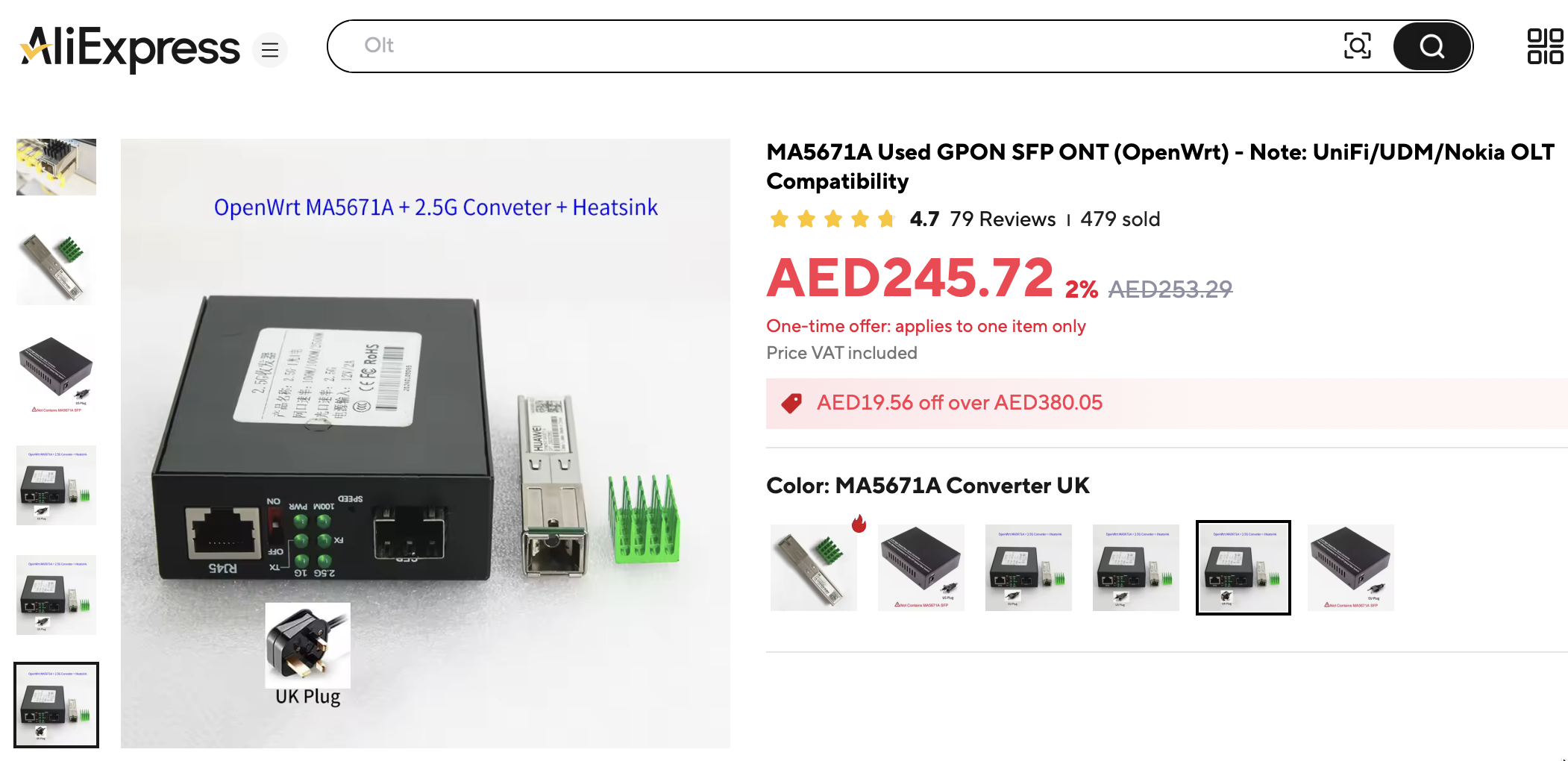
7 days later.
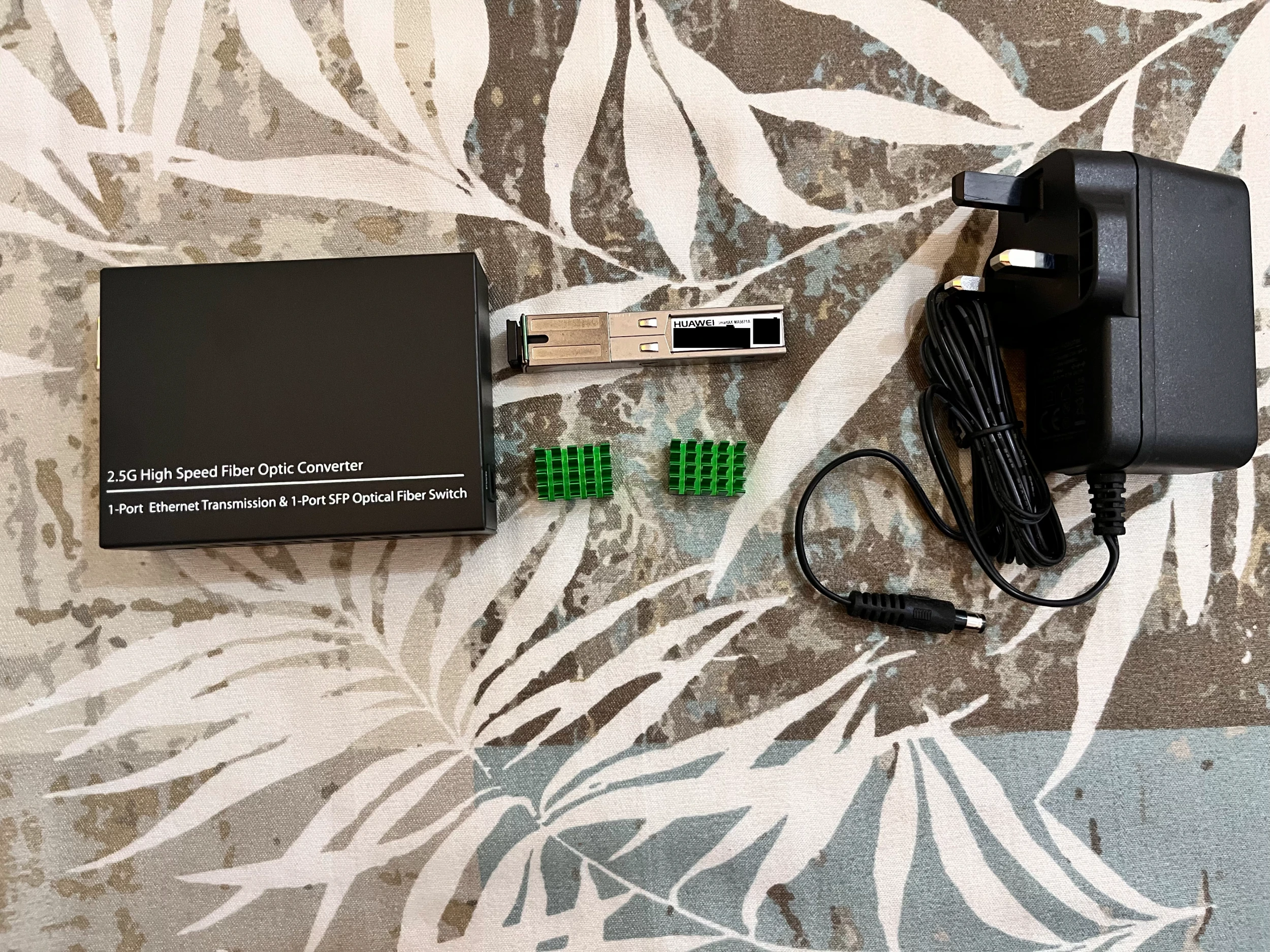
Getting the stick to work
I plugged it into the converter, powered it on, gave myself a static IP in the 192.168.1.0/24 range (anything but .10, since that’s the stick), and went to 192.168.1.10.
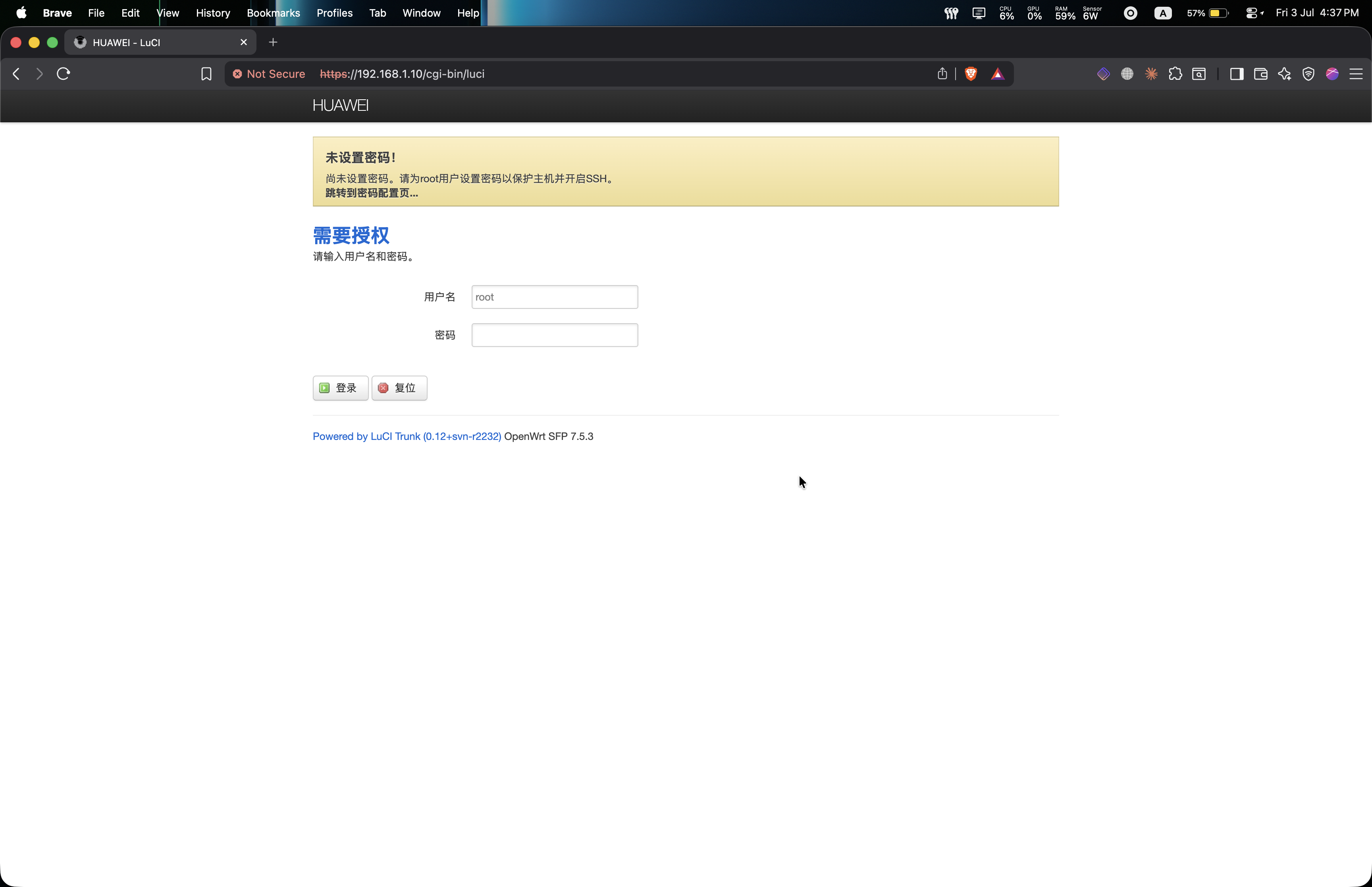
Once I was in, the interface was in Chinese, so I went to System > System > Language and Style and switched it to English.
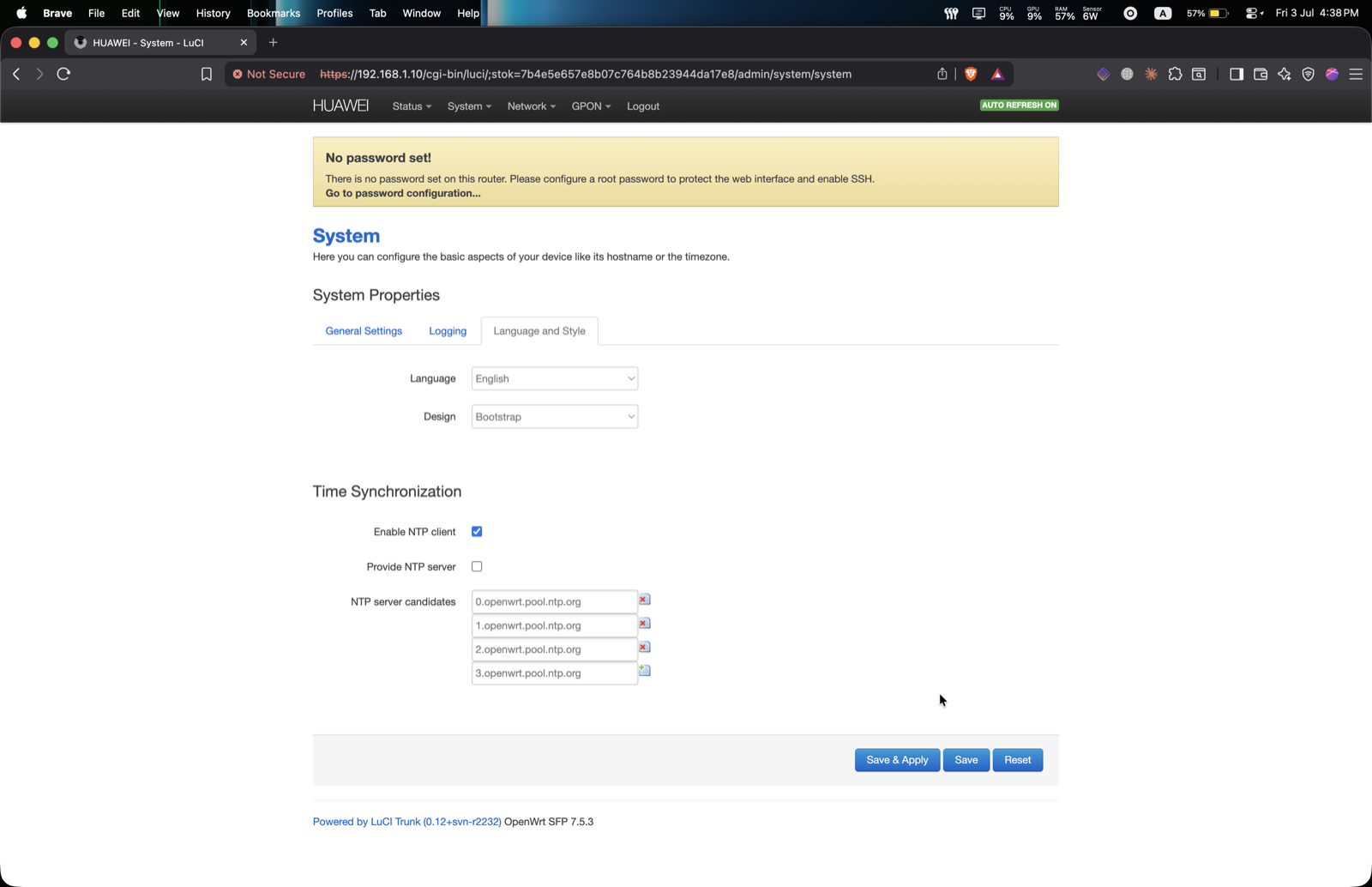
Now I want to configure it so it impersonates the identity of my ISP’s ONT.
Note: the GPON pages and the other custom pages on the stick are still fully in Chinese, with no English version. So I leaned on a translator and an LLM to find my way around them.
I started with the obvious parts, the serial number and the MAC address, and set them on the stick’s GPON pages to match my ONT.
You set the MAC under GPON > GPON MAC Configuration. On newer firmware it’s moved to Network > Interfaces, the normal OpenWrt way.
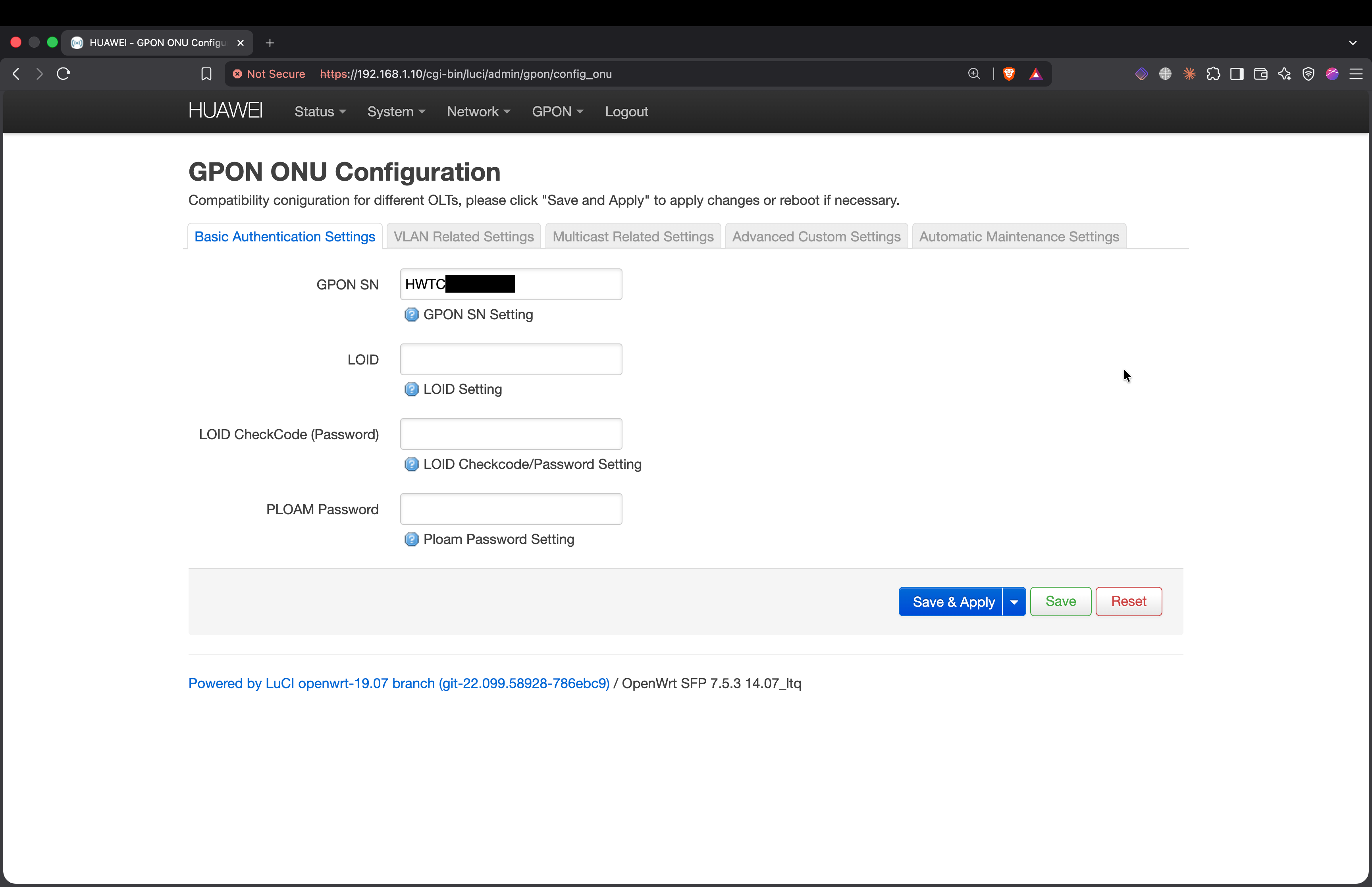
Then I unplugged the fiber from the ONT and moved it over into the stick.
Now, an ONT doesn’t connect instantly. It climbs through a set of registration states with the OLT, O1 to O5:
- O1 is power-up.
- O2 and O3 are where the OLT hears my serial and measures how far down the fiber I am.
- O4 is where it configures me over OMCI.
- O5 is the finish line. Operational. Registered, and allowed to actually pass traffic.
At first it wouldn’t settle. It kept climbing to O3 and then dropping back to O2. I thought I was wrong. Maybe there was a PLOAM password. I didn’t want to crack open my ISP’s ONT though, it’s not really mine. But I remembered it had telnet, it’s just switched off by default. And I could turn it on the same way I pulled the config out earlier, edit the config file, then re-upload it through the web UI. The switch is a single field:
<AclServices HTTPLanEnable="1" HTTPWanEnable="0" FTPLanEnable="0" FTPWanEnable="0" TELNETLanEnable="1" TELNETWanEnable="0" SSHLanEnable="0" SSHWanEnable="0" HTTPPORT="80" FTPPORT="21" TELNETPORT="23" SSHPORT="22" HTTPWifiEnable="1" TELNETWifiEnable="1">
I flipped TELNETLanEnable from 0 to 1, uploaded it and restarted.
Anime4000 documents all of this in detail on this repo, star it.
$ telnet 192.168.100.1
Trying 192.168.100.1...
Connected to 192.168.100.1.

Welcome Visiting Huawei Home Gateway
Copyright by Huawei Technologies Co., Ltd.

Login:root
Password:adminHW
WAP>
This WAP> prompt is a locked-down shell.
WAP>su
success!
SU_WAP>
This prompt is SU_WAP> the one with the whole command set.
SU_WAP>display ploam-password
ploam password :

success!
There is no PLOAM password. Since I was already in there, I got some more info.
SU_WAP>display sn
sn = 48575443........

SU_WAP>display version
hardware version          = 169D.A
main software version     = V5R020C10S130
So the auth was not the problem. The stick dropping back to O2 had to be something else.
Turns out the serial and MAC on their own aren’t enough. There were two more things I had to get right, and it was the combination of both that finally got me a stable O5.
The first is the rest of the identity. On top of the serial and MAC, you also have to match the vendor ID, the equipment ID, the ONT version, and the OMCID version.
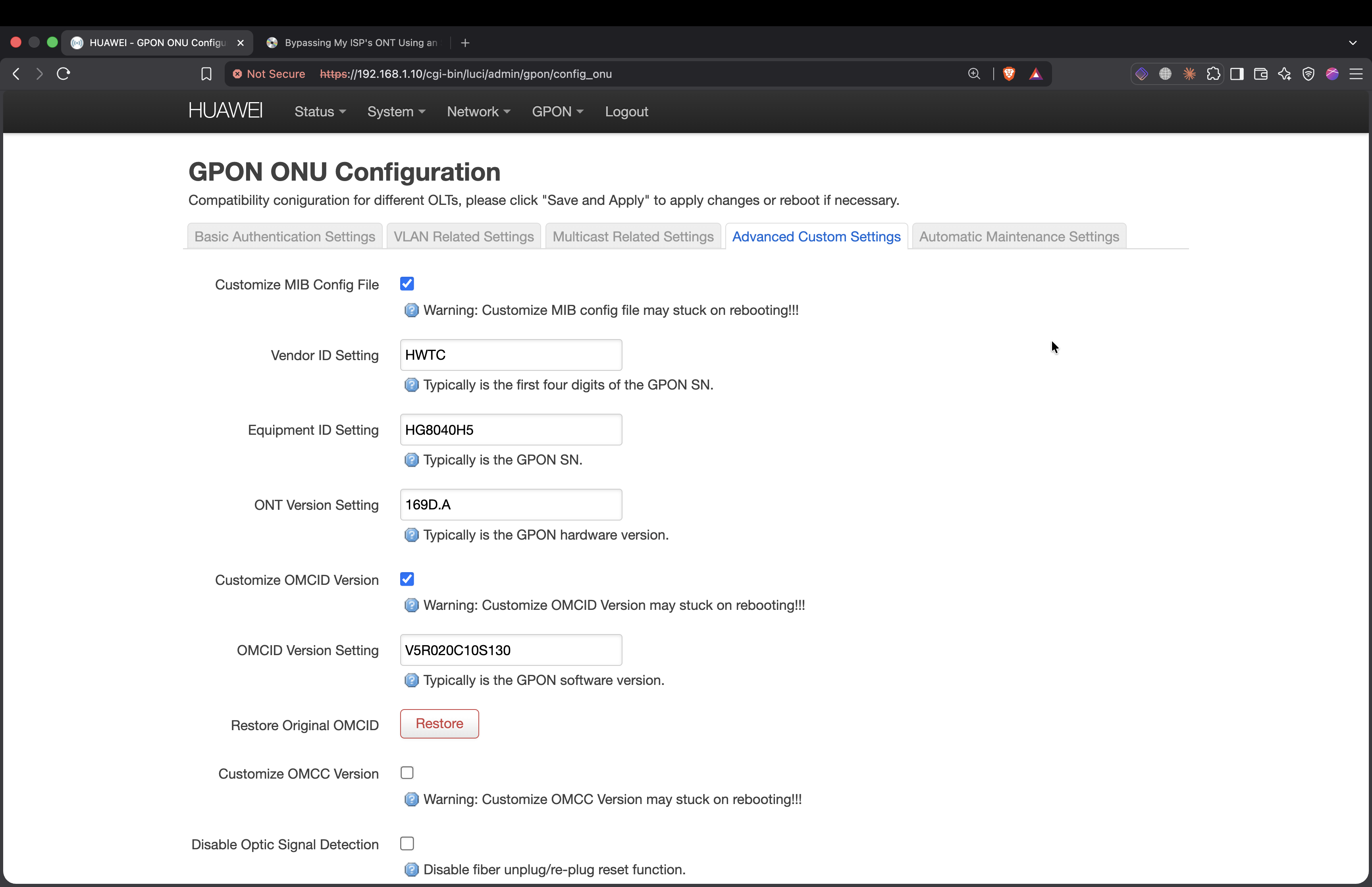
The stick logs every field as it applies them on boot, so I could watch the clone go on:
[config_onu]: Setting Equipment ID: HG8040H5.
[config_onu]: Setting Vendor ID: HWTC.
[config_onu]: Setting ONT Version: 169D.A.
[config_onu]: Setting GPON SN: HWTC********.
[onu]: Using ploam serial number: HWTC********
[onu] password: 0000000000
There’s the PLOAM password again, 0000000000, all zeros, exactly like the ONT told me. So the identity was going on clean.
The second is a loss-of-signal alarm. Even with the identity set, the stick wouldn’t hold O5. It would reach it and then spit this out on a loop:
[onu] PLOAM Rx - message lost
[onu] PLOAM loss detected, but not in O5
[vlanexec]: current loss_of_signal state: 1, waiting ...
loss_of_signal state: 1. The stick thought it was losing the optical signal and kept knocking itself back down before it could settle. It wasn’t a real optical problem, it was just reacting to a loss-of-signal alarm it shouldn’t have. There’s a setting to make it ignore that alarm, so I turned it on.
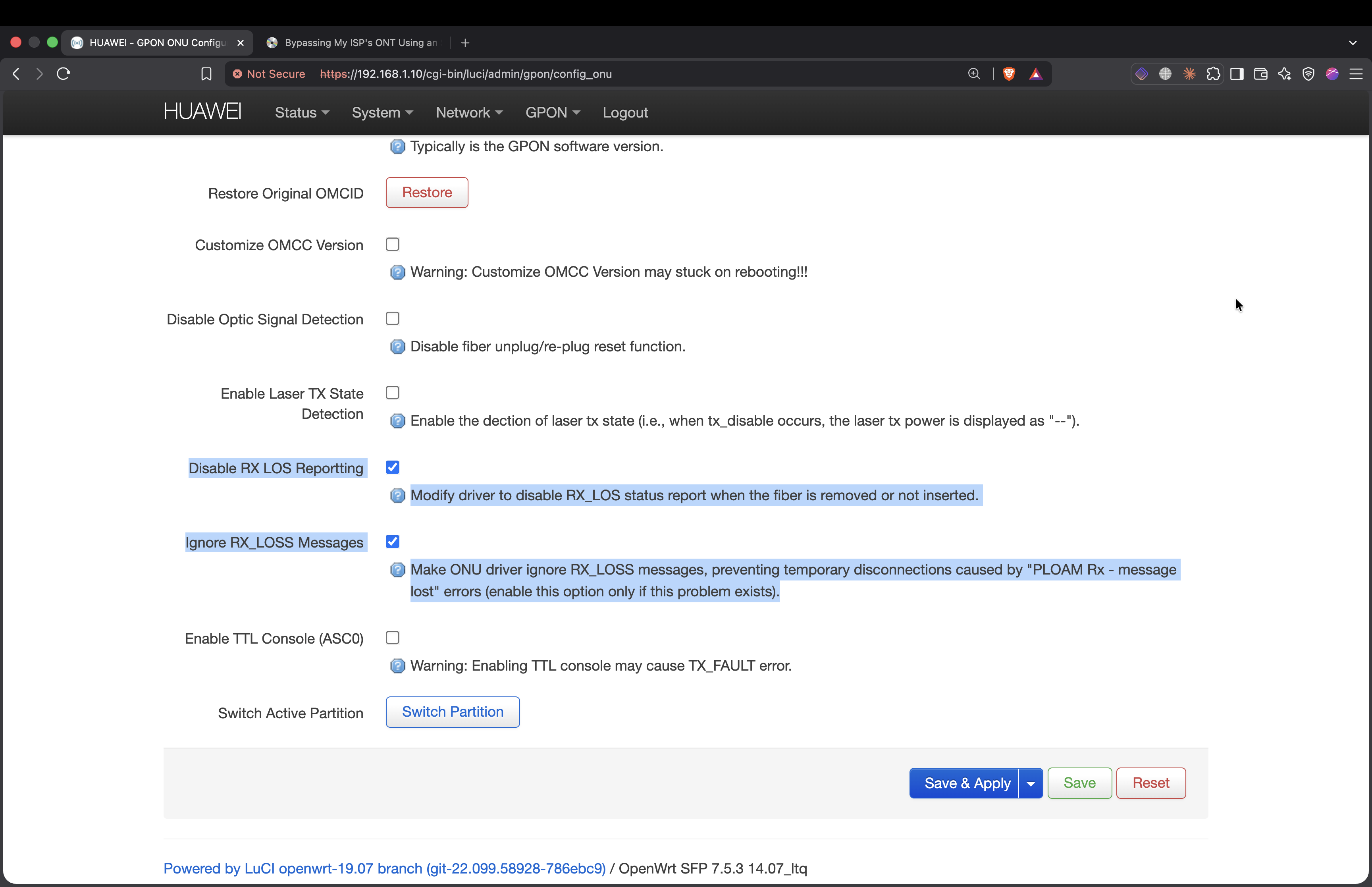
After that the log flipped:
[config_onu]: Disabling rx_los status ...
[onu] PLOAM Rx - message lost
[onu] FSM O5 - re-use Alloc-Id 0x104 / Tcont Idx 0x000
One lost message, then FSM O5, and this time it stayed there.
I changed both of these around the same time, so I can’t say for sure which one alone would have been enough. What I do know is that together, the full identity plus ignoring that alarm, is what gave me a solid O5. (When I have access to the device I’ll test and update the post.)
O5. Registered. Optical reading around -11 dBm, healthy.
I wasn’t online though.
The stick was registered, but there was still no internet. PPPoE would come up, but nothing actually flowed.
On my ISP’s fiber, the internet isn’t untagged. It rides on a specific VLAN. On the other end I have my router, a TP-Link ER605, doing the PPPoE and tagging my data with the VLANs.
My router tags VLAN 1104. That’s the VLAN my ISP uses for internet on my connection when I am using their ONT. But on the fiber, my internet doesn’t actually ride on 1104, it rides on VLAN 22. I found that in the stick’s own GPON debug page (GPON > GPON Model Info), which lists the VLANs the OLT is using: 22, 21, and 11. Reddit had also told me the internet one is usually 22 with Etisalat, so it lined up.
Normally you never think about any of this, because it turns out the ISP’s real ONT translates between the two. It takes 1104 from the router and puts it on 22 for the fiber, then flips it back on the way down. My stick was supposed to do the same thing, and it just didn’t. (I think this is a firmware bug, since Force Create ME Rule was enabled the entire time.)
So the router would tag 1104, the stick would pass it straight through, and it would hit the fiber on the wrong VLAN. Nothing. I messed with the router’s VLAN settings for a while and got nowhere. It only worked once I told the stick itself (not the router!) to use VLAN 22, by setting its PVID.
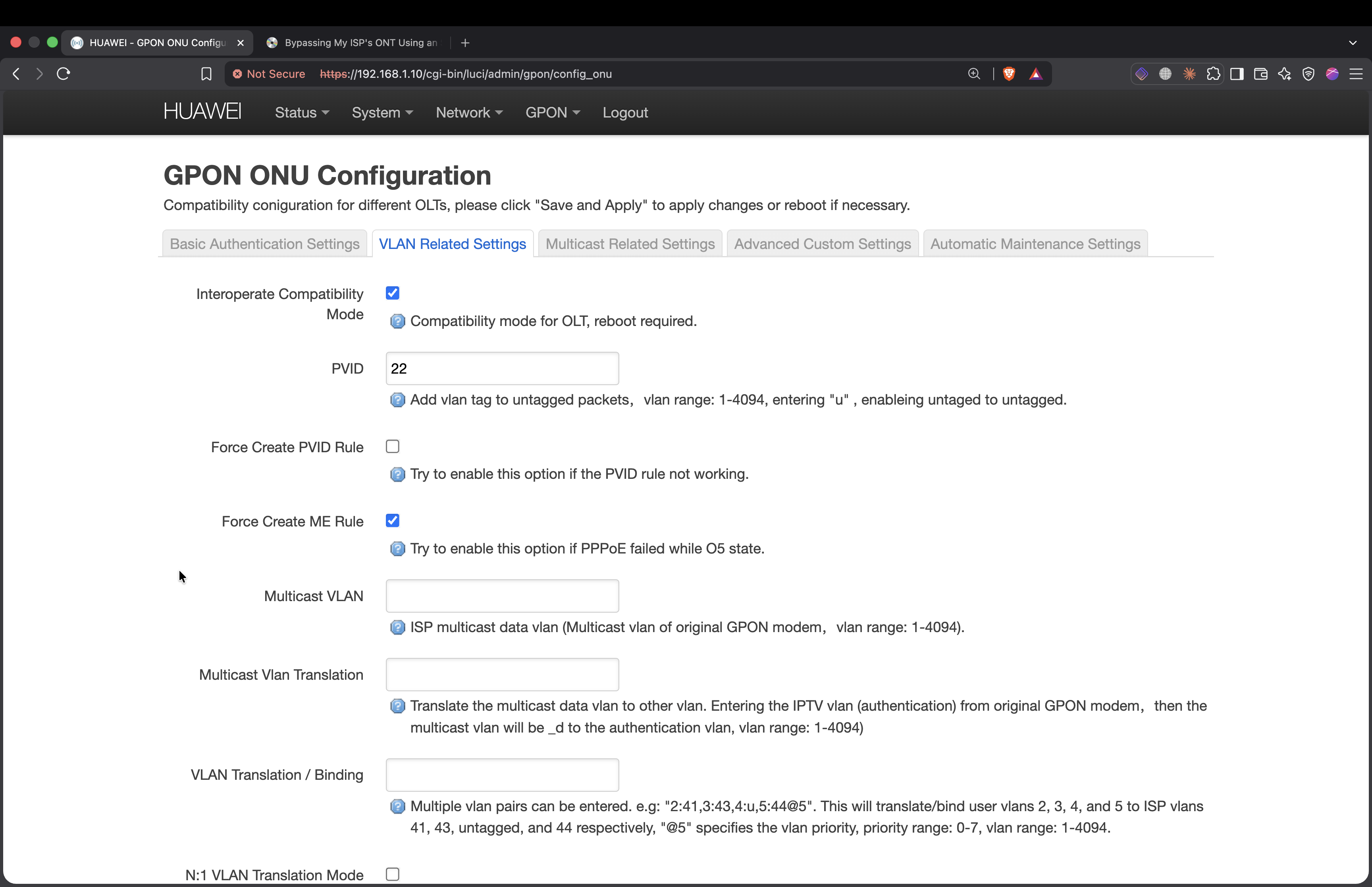
That PVID 22 fix was the one that worked, but it wasn’t the only thing I tried. Before I got there I ran through basically every combination I could. Here is all of them, and what each one did.
| What I set on the stick | What the router sent | Result |
|---|---|---|
| PVID 22 | untagged | works |
| PVID 22 | tagged 22 | works |
| PVID 22 | tagged 1104 | works |
| nothing | tagged 1104 | link up, no internet |
| nothing | tagged 22 | link up, no internet |
| PVID 1104 | untagged | dead, nothing connects |
| untag mode | anything | link up, but no data |
binding 1104:22 | tagged 1104 | works, and the one I kept |
Let me walk through them.
The moment I set the stick’s PVID to 22, it worked, and it kept working no matter what my router did. Tagging 1104, tagging 22, or sending nothing at all, all three were fine. That’s because PVID 22 tells the stick to put everything onto fiber VLAN 22 on the way out and map it back on the way in, so whatever the router hands it just gets rewritten.
The opposite is leaving the stick with no rule at all. With nothing set on the stick and the router tagging 1104, or even tagging 22 directly, PPPoE would come up but nothing real moved. 1.1.1.1 was dead. You might think that’s weird, the frame ends up tagged 22 either way, so it shouldn’t matter whether the stick or the router wrote it. I thought the same.
The catch is that the stick isn’t a switch, and the PON isn’t tagged Ethernet. Upstream, the ONU carries traffic as GEM (GPON Encapsulation Method): each frame is classified, mapped to a GEM Port, and scheduled inside a T-CONT for its timeslot. So the stick has to take the frame arriving on its UNI (the Ethernet side) and bind it to a GEM Port on the ANI (the PON side). That VLAN-to-GEM-Port classification is exactly what the stick’s PVID, or the tvlan binding, programs, it’s the Extended VLAN Tagging Operation (ME 171 in OMCI). A plain 802.1Q tag from the router is not that.
So with no rule on the stick, an ingress VLAN of 22 has no GEM Port to map onto. It never reaches the PON upstream, and downstream never gets mapped back to the router either. The router can tag frames all day. Only the ONU can bind a VLAN to a GEM Port and T-CONT.
Then two that failed outright. Setting the stick’s PVID to 1104 kills it completely, because 1104 doesn’t exist on the fiber, only 22 does, so nothing even registers. And the “untag” mode (untagged in, untagged out) gets an IP but carries no data, because my line’s internet rides tagged on 22, not untagged. That mode is for a different kind of line, not mine.
And the last one is what I actually kept. Leave the PVID empty and use a per-VLAN binding instead, 1104:22, which maps my router’s 1104 to fiber 22 and nothing else. I wrote the full thing as 1104:22,1102:21@5,1101:11@3.
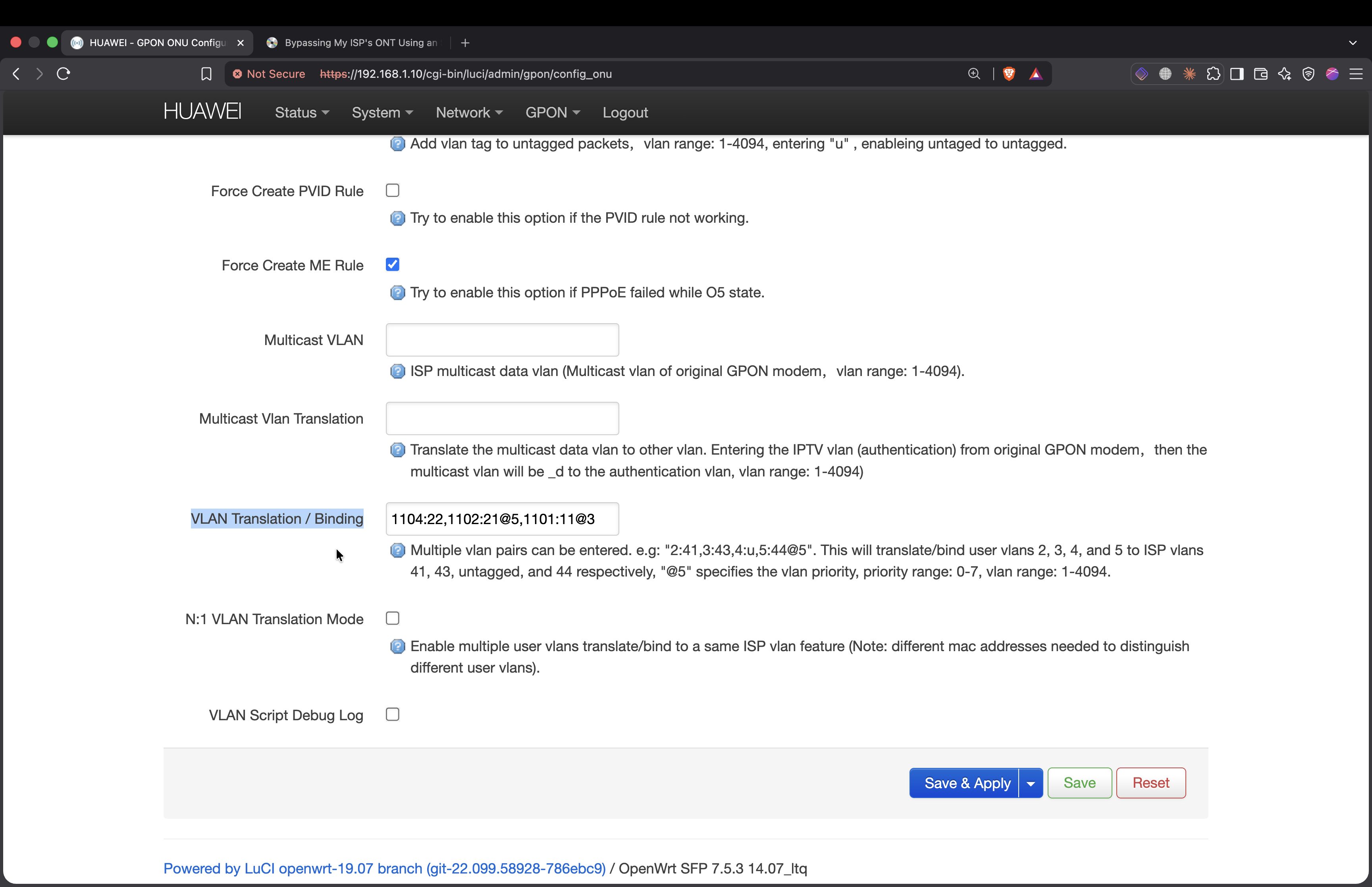
Why the binding over the simple PVID 22? Two reasons. It’s authentic, my router speaks 1104 exactly like it would to my ISP’s real ONT, so from the fiber’s side nothing looks off. And it’s future proofed, the voice lane (1102:21) and the TV lane (1101:11) are already mapped, so if I ever want them, it’s zero changes on the stick.
And that @5 in 1102:21@5 is just the 802.1p priority. My ISP puts internet at priority 0, voice at 5, and TV at 3. Voice gets the high one so calls don’t stutter when the line is busy. I didn’t guess any of this, it came from the same place as the VLANs: the OLT’s own mapping sitting in the stick’s GPON debug page (GPON > GPON Model Info). That dump is the Extended VLAN Tagging Operation the OLT pushes down (ME 171), and it lays out every service, its fiber VLAN, and its priority. I just copied them across.
And that was it. Internet, running through my own stick, on my own hardware.
The box landed about a week after I ordered it. Getting it from plugged in to actually online then took me a few more evenings of moving the fiber back and forth, watching states, and reading logs. I was wrong plenty of times along the way. But it worked.
Chapter 3 - Updating the Firmware
For a while I was confused about the firmware that came on the stick. I checked the stick’s Hack GPON page and looked at its list of firmwares and files, and I was pretty sure mine was the Chinese firmware from right.com.cn.
So I went to that site to see if there were newer versions. Turns out it’s a big deal in China. It’s called the Enshan Wireless Forum, one of the biggest networking forums there, and it’s a gold mine, full of posts and firmware files I couldn’t find anywhere else.
Signing up needs an invite code, so I bought one for 1.25 RMB over WeChat.
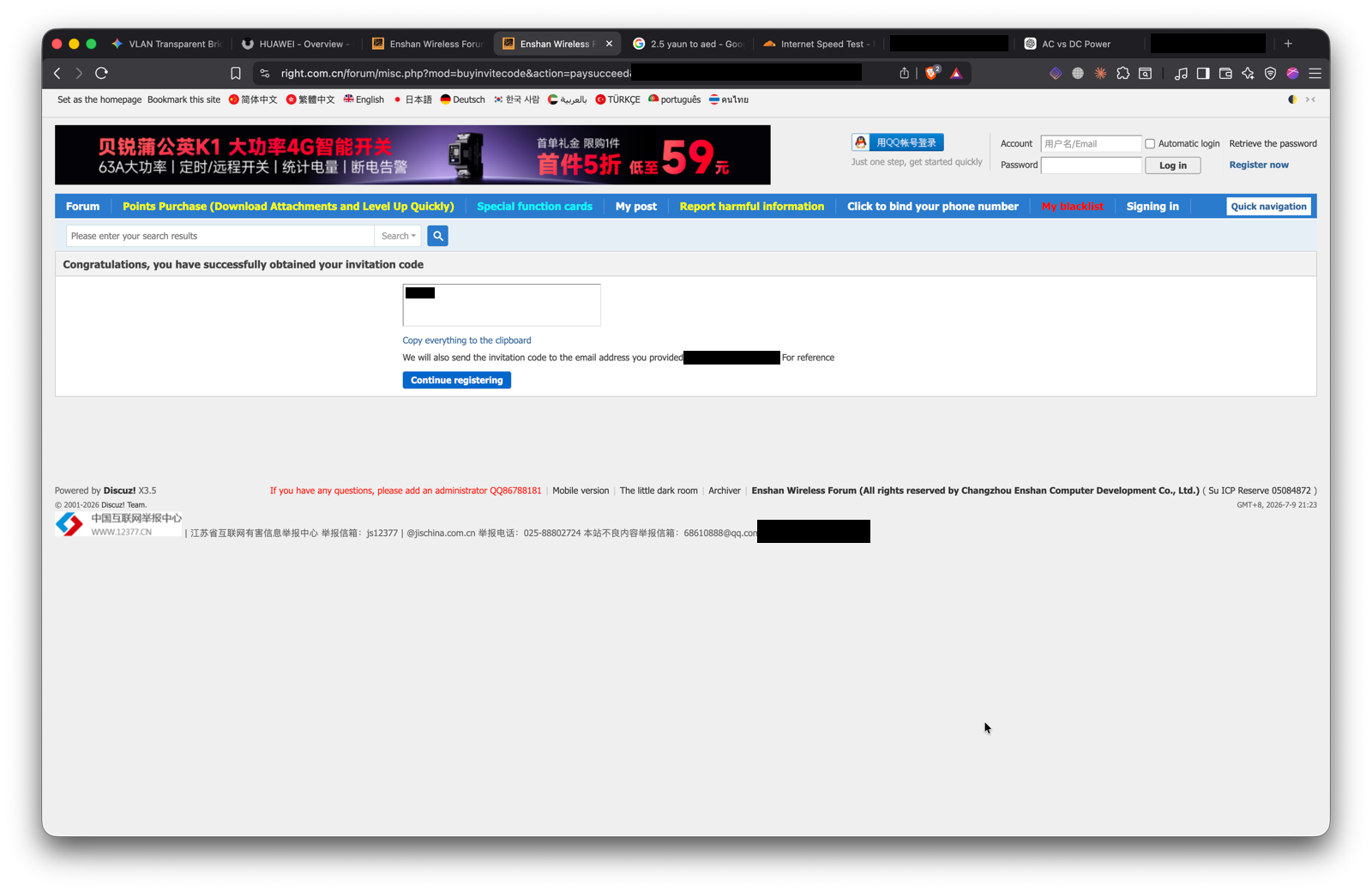
I searched “MA5671A” and found these posts from a guy who maintains the firmware for these sticks. I went to download it, but his link was on Baidu, China’s big file sharing platform, which is painfully slow from outside China. So I used Baidu Erranium, a service that pulls Baidu files for you for a fee. I paid around $3 and got the files. It’s firmware for a whole bunch of devices, not just mine, so I dug down to my device and grabbed the latest version.
To make your life easier, here are the files I got from Baidu:
 MA5671A firmware, right.com.cn 2026.03.01 (md5 4fc1c8c4c28f585f5181af53c1e5b5dd)
Flashing it
First problem: I couldn’t even SSH into the stick. Modern macOS refused the connection, because the stick runs an old OpenWrt (14.07) with old key-exchange and host-key algorithms that current OpenSSH disables by default. I had to whitelist the legacy ones in ~/.ssh/config:
Host stick
    HostName 192.168.1.10
    User root
    KexAlgorithms +diffie-hellman-group1-sha1
    HostKeyAlgorithms +ssh-dss
    StrictHostKeyChecking no
    UserKnownHostsFile /dev/null
Now I’m in:
BusyBox v1.24.2 () built-in shell (ash)

 OpenWrt - (14.07_ltq) --- Lantiq Edition for GPON
 ----------------------------------------------
Before touching anything, backups. You don’t flash a device you cloned an identity onto without a way back. The stuff that matters lives in the U-Boot environment and the raw flash: the cloned serial and MAC, and goi_config, the laser calibration blob. Lose that calibration and the optics are junk.
I tried to dump the flash partitions to /tmp first:
root@HUAWEI:~# cp /dev/mtd0 /tmp/mtd0-uboot.bin
cp: write error: No space left on device
No room. /tmp on this thing is a 29.5 MB tmpfs and it fills up over uptime. So instead of staging on the stick, I streamed the partitions straight to my Mac over SSH:
ssh stick "cat /dev/mtd0" > mtd0-uboot.bin
ssh stick "cat /dev/mtd1" > mtd1-uboot_env.bin
They came out at exactly 262144 and 524288 bytes, 256 KB and 512 KB, the bootloader and the U-Boot env. That env partition is the gold. It’s where the cloned identity and goi_config live, so as long as I have mtd1 I can always put the stick back exactly how it was.
Then the flash. /tmp was still full, so I rebooted the stick to clear the tmpfs, copied the image over, checked the md5 matched what the forum listed, and ran sysupgrade:
root@HUAWEI:~# md5sum /tmp/fw.image
4fc1c8c4c28f585f5181af53c1e5b5dd  /tmp/fw.image
root@HUAWEI:~# sysupgrade -n /tmp/fw.image
killall: watchdog: no process killed
Sending TERM to remaining processes ... omci_usock_serv omcid ocal vlanexec.sh monitomcid.sh monitoptic.sh ntpd ubusd askfirst sleep sleep sleep logd logread netifd uhttpd sfp_i2c
Sending KILL to remaining processes ... ntpd askfirst
Switching to ramdisk...
Performing system upgrade...
ash: /opt/lantiq/bin/config_onu.sh: not found
Unlocking image0 ...
Erasing image0 ...

Writing from <stdin> to image0 ...
Upgrade completed
Rebooting system...
Read from remote host 192.168.1.10: Operation timed out
Connection to 192.168.1.10 closed.
client_loop: send disconnect: Broken pipe
The -n means don’t keep the old config, come up clean. It writes the image, reboots, and drops the connection. A few minutes of the stick pinging in and out while it booted, and then it came back on the new firmware:
BusyBox v1.36.1 (2022-04-16 13:13:32 UTC) built-in shell (ash)

 OpenWrt - (14.07_ltq) --- Lantiq Edition for GPON
 ----------------------------------------------
=== WARNING! =====================================
There is no root password defined on this device!
Use the "passwd" command to set up a new password
in order to prevent unauthorized SSH logins.
--------------------------------------------------
BusyBox jumped from 1.24 to 1.36, fresh LuCI, the whole thing. And the part I actually cared about:
root@HUAWEI[15:21]:~# fw_printenv nSerial
nSerial=HWTC........
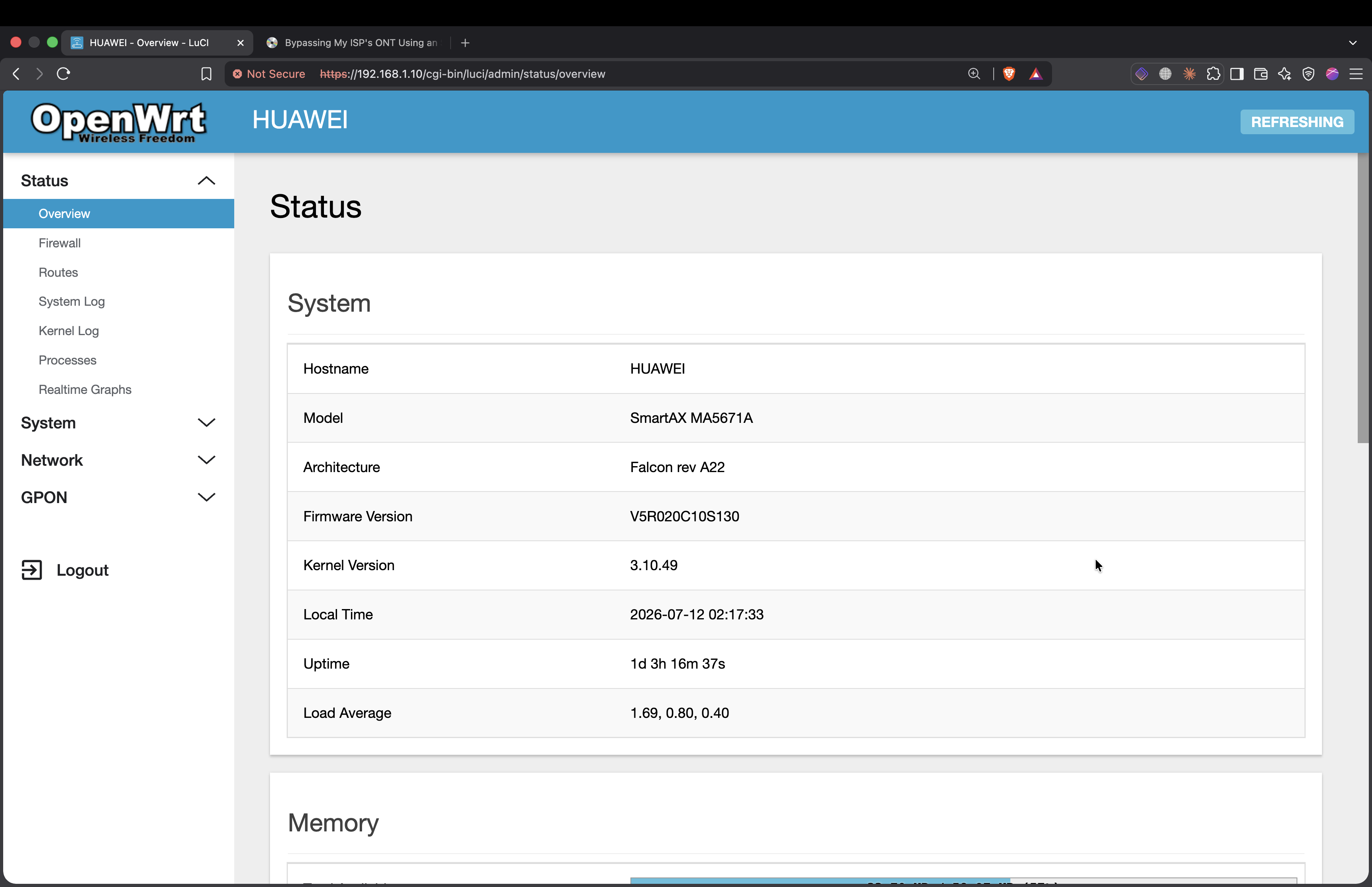
The cloned serial was still there. Which makes sense: sysupgrade rewrites the firmware image, not the U-Boot env where the identity lives, so the clone rode straight through the flash untouched. I flashed the other boot slot the same way so both images are current, re-applied my GPON settings, and it came back online.
New firmware, fully English, and still wearing my ISP’s ONT identity.
The End
This was an amazing journey. It opened my eyes to ISP equipment you don’t usually get to touch in a lab, and to fiber and how it actually works. After this project, I’m really excited to build a GPON ISP lab of my own. Just waiting for some cash to flow to put it together.
Update: This stick gets hot, so I got a small 12V 40mm Fan with a DC Power Splitter. After testing it, it works well. It is not as hot to touch as in the past.